Ezekia offers three main ways to display records - List View, Grid View, and Compact View - each with two sub-view options (buttons labelled “1” and “2”). You can also customise how these views look using the settings icon.
1. Switching Between Views
On most screens where there’s a list of records, you’ll see the view controls at the top-left of the screen:
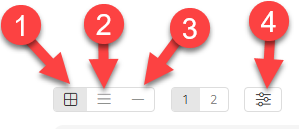
- Grid View icon (displayed as a series of boxes across the page)
- List View icon (displayed as broad lines across the page)
- Compact View (a narrow line across the page)
Click the icons to toggle between them. Once selected, use the numbered buttons “1” and “2” to switch between sub-views within each view type.
Tip: Each view includes two sub-view buttons labelled “1” and “2.” These let you instantly switch between layouts or levels of detail. For example, List View (1) shows more rows with less detail per record, whereas List View (2) displays fewer rows but more details per record. Grid View behaves the same way with more or less detail in its cards.
2. Customising the View Layout
Each view and sub-view can be tailored to your needs and will retain your preferences. The right-most icon (icon 4 on the image above) opens the Customisation Panel, where you can:
- Show/hide specific fields/data points in any view
- Save multiple layouts for different workflows
Advanced Customisation Example:
In the Default Fields section you can pick which data appears in each slot (such as Picture, Job Title, Email, Tags, etc.). Fields can be slotted, hidden, or displayed as regular/full-size pictures. This lets you control the appearance of both List and Grid cards at a granular level.
Note that on the compact view, space is extremely limited, so to display another field, you will need to hide an existing field first to make room for the new field.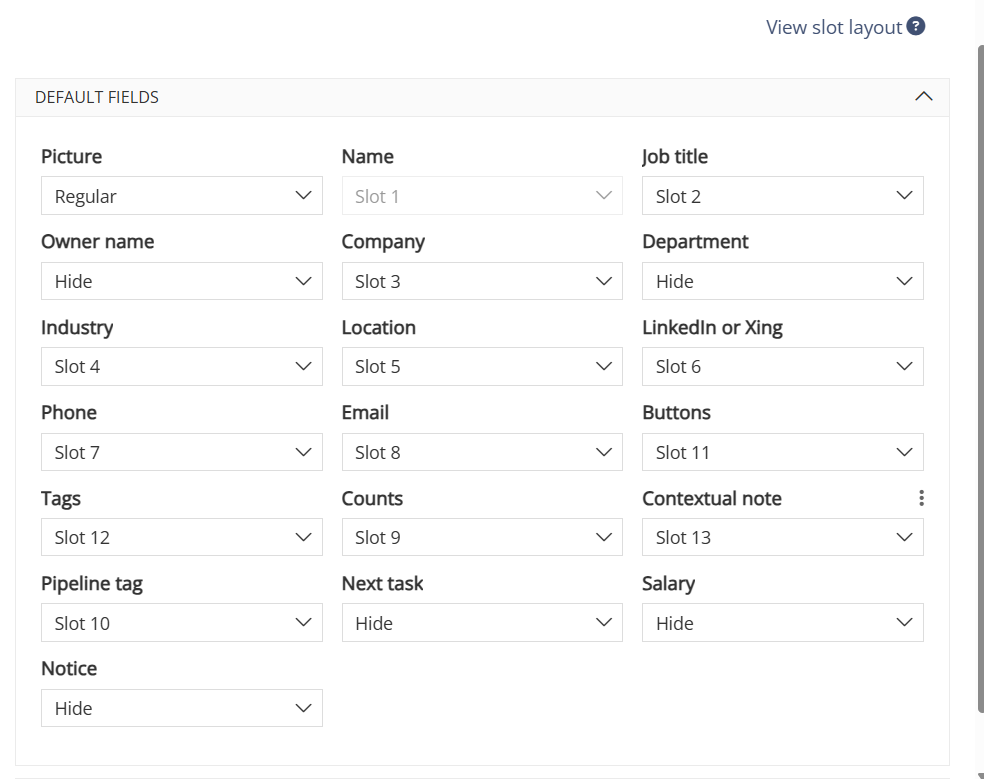
Note: These view settings are personal to your account and do not affect what other users see.
3. Will My View Preference Be Saved?
Yes. Ezekia remembers your last selected view and sub-view (including whether you chose “1” or “2”), and your custom field settings for each section, so when you return to the same screen, it will look the same.
Was this article helpful?
That’s Great!
Thank you for your feedback
Sorry! We couldn't be helpful
Thank you for your feedback
Feedback sent
We appreciate your effort and will try to fix the article