You can use AI in Ezekia to help write emails and notes, to add data from the internet to your records, and to analyse your data in the Query Builder or almost any other screen. Ezekia's built-in AI includes Sidekick, AI Automations and the other AI features, and it runs on your firm's own AI subscription with either OpenAI or Anthropic (Claude) as the provider.
You can also connect external AI tools such as ChatGPT or Claude to your Ezekia data using the Ezekia AI Server (MCP). This is a separate setup, and links to those guides are at the bottom of this page.
Note: OpenAI's API and ChatGPT are two different products from the same company. In the same way, Anthropic's API and a Claude.ai subscription are separate products. Ezekia's built-in AI needs an API account, not a chat subscription.
Choosing a provider
You only need one AI account, and all the users in your firm share it. An administrator chooses whether that is OpenAI or Anthropic (Claude), and that one choice powers both Sidekick and AI Automations.
Setting up OpenAI
Ezekia can be used with either a personal or a business OpenAI account, but a business account has two advantages:
- It lets you opt out of OpenAI learning from the data you send it. Personal accounts can't do this.
- It gives you a predictable quota, rather than "use until your credits run out".
To get your key:
- An administrator signs up for an account at https://platform.openai.com.
- In OpenAI, they click the 'Create API Key' button.
- They click 'Create a new secret key' to create a key with full access.
- They copy the new key to their clipboard.
Setting up Anthropic (Claude)
An administrator needs an Anthropic API account, which is created through the Anthropic Console (https://platform.claude.com/). They create an API key there and copy it to their clipboard. Anthropic keys begin with sk-ant-.
Adding your key in Ezekia
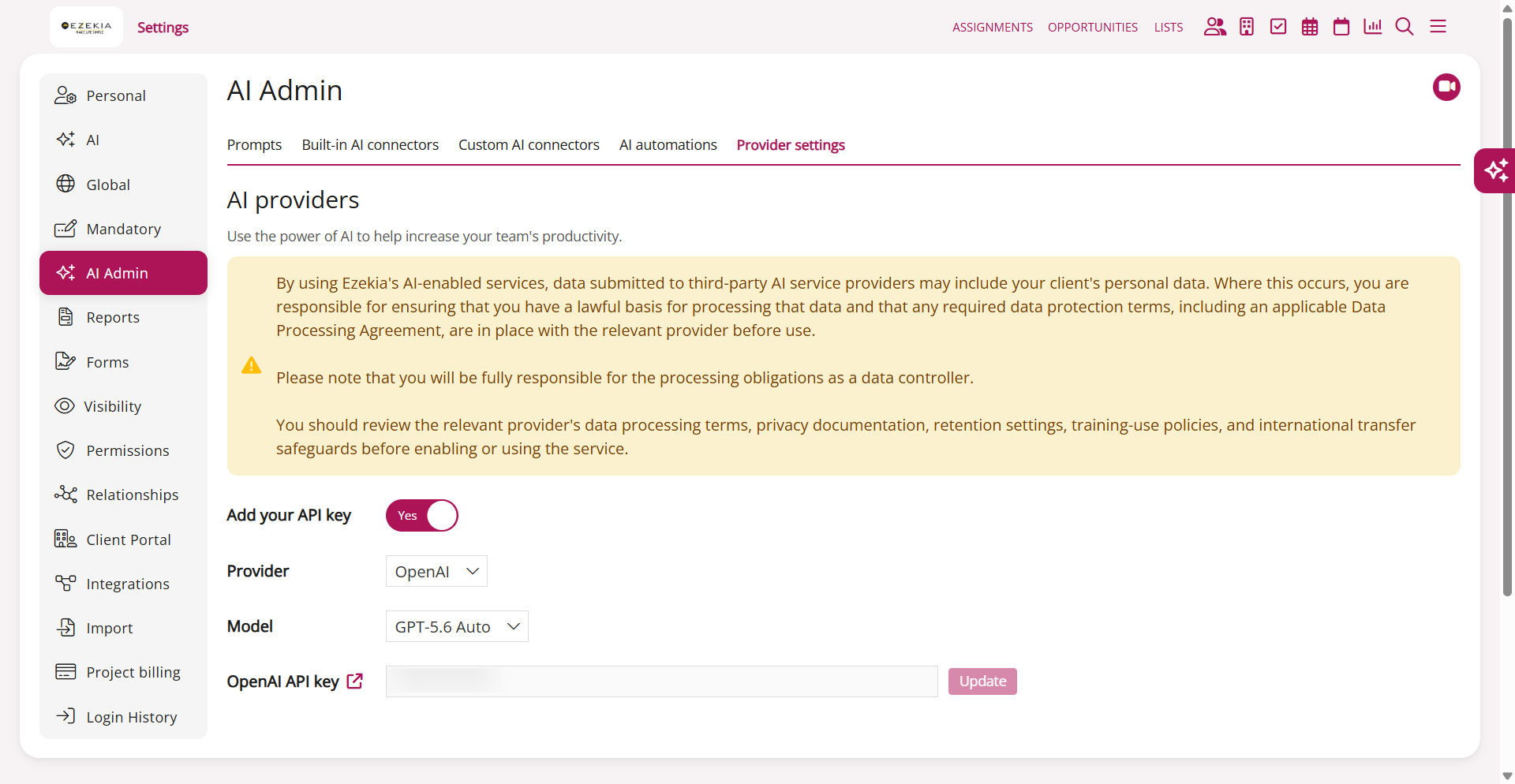
- Go to Settings, then AI Admin, then the Provider settings tab, which is headed 'AI providers'. You need the AI Admin permission to see this tab.
- Set Add your API key to Yes.
- Choose your Provider, then choose a Model.
- Paste your key into the field below and save it.
Each provider needs its own key. Anthropic keys are checked when you save them, so you'll be told straight away if a key is wrong, revoked or out of quota.
Choosing a model
The models currently available are:
- OpenAI: GPT-6 Astra, GPT-5.6 Auto, GPT-5.6 Luna, GPT-5.6 Terra, GPT-5.6 Sol, GPT-5.5, GPT-5.4
- Anthropic: Claude Fable 5.1, Claude Auto, Claude Sonnet 5, Claude Opus 5, Claude Haiku 4.5
GPT-5.6 Auto and Claude Auto are the default models for each provider. With Auto selected, Ezekia chooses a model for each request based on how complex it is. It uses a faster, cheaper model for simple questions and a more capable one for complex ones. The step that chooses the model is itself a small AI request made against your own API key.
If you'd rather fix the model yourself, select a specific one from the list instead.
Data protection
Before enabling AI, read the data protection notice shown at the top of the AI providers panel. Client personal data may be sent to your AI provider, and you remain the data controller for that processing. You should review the provider's data processing terms, privacy documentation, retention settings, training-use policies and international transfer safeguards.
If you're using OpenAI, it's important that you opt out of allowing OpenAI to learn from the data it is sent.
Credits and usage limits
Your AI usage is billed by your provider against your own API key, so you need enough credit with that provider for AI to work in Ezekia.
If you see an error mentioning credits, quota, rate limits or an unavailable model, it comes from your provider rather than from Ezekia. It usually means your account has run out of credit or hit a rate or spend limit. AI will start working again once you add credit or raise your limits with your provider.
If you've switched from ChatGPT to OpenAI's API, you may need to give OpenAI payment details before it will work.
Using AI in Ezekia
The following FAQ articles describe how to use the various AI features in Ezekia:
- AI Sidekick (https://ezekia.freshdesk.com/support/solutions/articles/101000562838)
- AI Enrichment & Creation (https://ezekia.freshdesk.com/support/solutions/articles/101000562839)
- Query Builder AI (https://ezekia.freshdesk.com/support/solutions/articles/101000562840)
- AI Automation in Ezekia (https://ezekia.freshdesk.com/support/solutions/articles/101000583933)
- Other AI in Ezekia (https://ezekia.freshdesk.com/support/solutions/articles/101000562841)
Connecting external AI tools (MCP)
- Connect ChatGPT to the Ezekia AI Server (https://ezekia.freshdesk.com/support/solutions/articles/101000574974)
- Connect Claude to the Ezekia AI Server (https://ezekia.freshdesk.com/support/solutions/articles/101000580430)
Was this article helpful?
That’s Great!
Thank you for your feedback
Sorry! We couldn't be helpful
Thank you for your feedback
Feedback sent
We appreciate your effort and will try to fix the article