Please note: Most of this functionally is being slowly replaced by AI Sidekick.
AI can be used in various places in Ezekia. AI CV enhancement, 'People like this', and email prediction do not require an OpenAI subscription. In contrast, an 'AI' button on various text fields requires an OpenAI subscription but provides a useful means of creating text content without using the Sidekick feature.
Remember AI can get it wrong. Always check the results returned by AI.
TABLE OF CONTENTS
- Creating and Enhancing Emails and Researcher Notes
- The following functions do not need an OpenAI subscription to work.
- People like this
- AI Email Prediction
- AI CV Enhancement
Creating and Enhancing Emails and Researcher Notes
This FAQ page describes how administrators can set up OpenAI integration: How do I set up and use OpenAI?
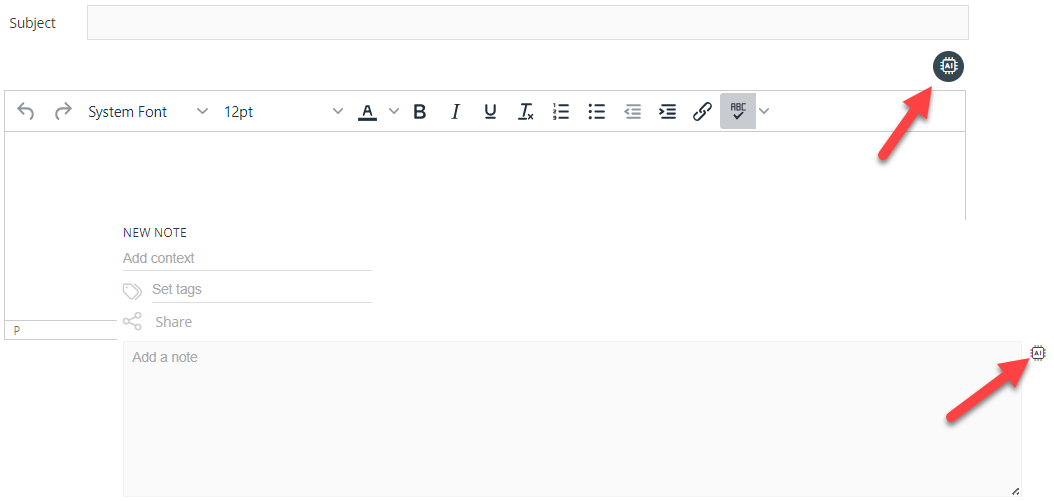
Once it is activated, an ‘AI’ button will be available above the email text box or to the right of the description or notes fields, as shown.
Emails
Click the OpenAI button and either select one of the prompts or enter your own email subject. OpenAI will compose an email for you. You will always need to check and sometimes adjust the text it gives you.
Click here for a short video explainer on how you can use OpenAI with Ezekia email.
Researcher Notes
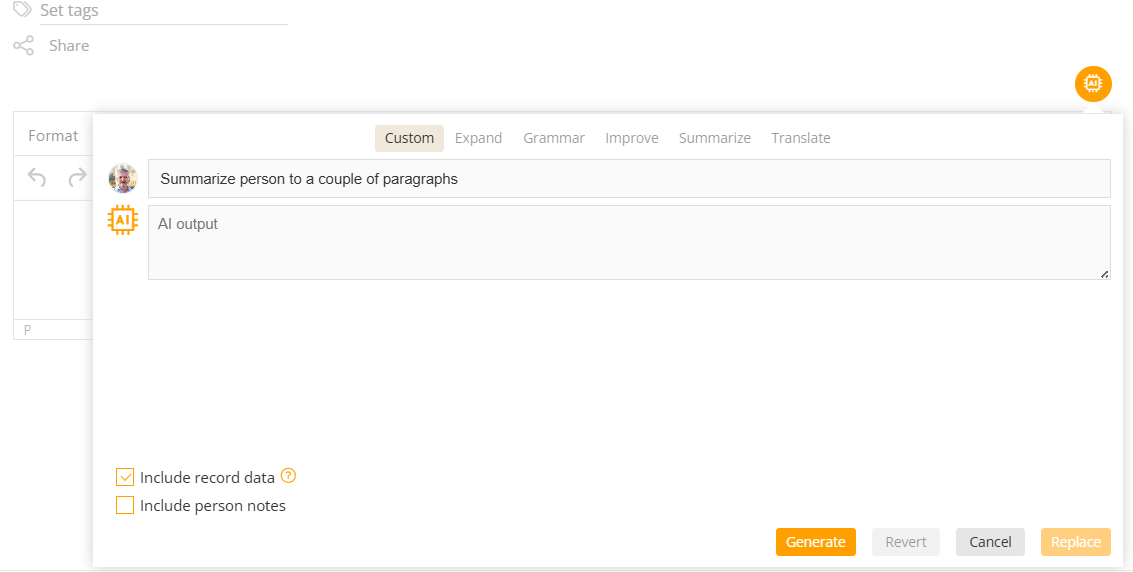
In addition to the options mentioned under 'Notes and Comments', you can use OpenAI to summarise the current candidate's details. Open a new researcher note, then press the open AI button next to the summary field (1). By default, the Custom option will be selected, but you can still refine the text used in the instruction section (2). When you 'Generate' (3), a summary of the entire profile will be generated. Use 'Replace' to store the new text in the Summary field and press Save. The summary field is available to use in custom Word and Query Builder reports.
You can opt to include other researcher notes in the information provided to OpenAI with 'Include person notes'. If you don't want to include the profile details and allow OpenAI to return text according to your instructions without considering the existing record it relates to, you can untick 'Include record data'.
Expand
This will expand on the text currently in the Content area when you click Generate. Click Revert to restore the text to what it was.
Grammar
This will improve the grammar of the text currently in the Content area when you click Generate. Click Revert to restore the text to what it was.
Improve
This will improve the readability of the text currently in the Content area when you click Generate. Click Revert to restore the text to what it was.
Summarise
This will summarise the text currently in the Content area when you click Generate. Click Revert to restore the text to what it was.
Translate
You need to enter the language you want to translate the text into. When you click Generate, the text will be translated. Click Revert to restore the text to what it was.
The following functions do not need an OpenAI subscription to work.
People like this
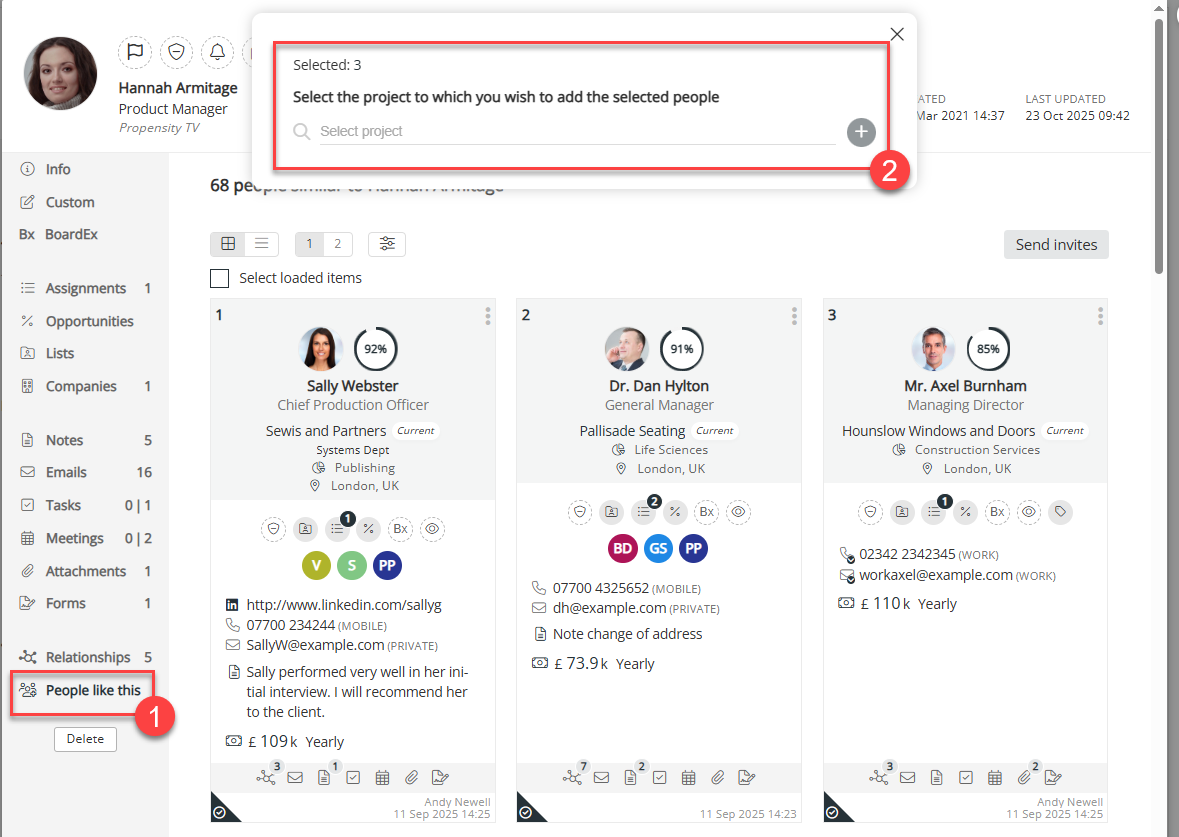
If you find a person record that is an ideal match for a role and want to find more people with similar attributes, you can use the person record tab 'People like this' (1). This will return a list of people with similar attributes, best matching first, that can be selected and added to a project using panel (2).
AI Email Prediction
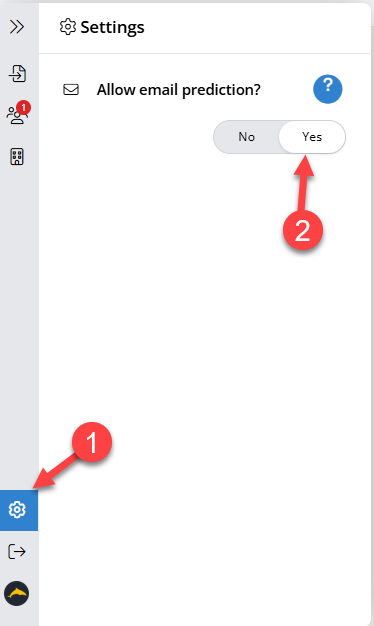
This is an optional feature of our Chrome extension. If there is no email address on the profile, with this feature enabled, Ezekia will attempt to predict the likely email address of the person (if possible) using the email address structure of other people who work for the same company. If it is possible to predict an email address, one will be added to the profile with the label 'Predicted'.
AI CV Enhancement
When parsing a CV, Ezekia uses its own AI to enhance profile details such as industry and job role, based on the content of the CV compared to other people in the database.
Was this article helpful?
That’s Great!
Thank you for your feedback
Sorry! We couldn't be helpful
Thank you for your feedback
Feedback sent
We appreciate your effort and will try to fix the article