
This guide explains how to connect Ezekia to OpenAI’s Agents and Workflows using the Model Context Protocol (MCP). Once connected, you can build AI agents that securely interact with your Ezekia data to automate tasks, generate insights, and streamline workflows.
Important: ChatGPT vs Ezekia’s Built-in AI
Ezekia supports two completely separate AI integrations:
Ezekia Built-in AI/Sidekick
- Uses the OpenAI API
- Requires an OpenAI API key and credits
- Configured inside Ezekia
- Powers features such as Sidekick and summarisation within the platform
OpenAI via MCP
- Uses OpenAI as an external AI tool
- Does not consume OpenAI API credits
- Uses an Ezekia API token
- Is configured inside OpenAI (not Ezekia)
Connecting OpenAI via MCP is independent of enabling Sidekick and other AI features inside Ezekia.
What This Integration Enables
Connecting Ezekia MCP to OpenAI Agents allows you to move beyond simple AI prompts and build structured, repeatable workflows.
Instead of manually working in Ezekia, your agent can:
- Search and retrieve candidates, companies, and projects
- Create and update records automatically
- Add notes, tasks, and project updates
- Run multi-step workflows (e.g. shortlist generation, reporting, follow-ups)
All using natural language instructions translated into secure API actions
Typical Use Cases
OpenAI Agents are particularly useful for:
- Candidate shortlisting workflows
Example: “Find 10 candidates for this role and generate a formatted summary report” - Automated admin tasks
Creating notes, updating records, adding follow-ups - Client reporting
Generate summaries across projects or talent pools - Data enrichment workflows
Updating or structuring records based on rules or prompts - Background automation
Running scheduled or trigger-based processes using a service account
Prerequisites
To use OpenAI with Ezekia via MCP, you will need:
- A OpenAI Enterprise or Business subscription
- Owner or Admin access in OpenAI
- An Ezekia API token with appropriate permissions
- Access to Ezekia MCP by way of an Ezekia admin account
You do not need an OpenAI API key or OpenAI credits to use the MCP.
How Authentication Works
The connector app itself is configured in advance by a OpenAI Owner or Admin using an Ezekia API token, which defines what actions OpenAI is allowed to perform in Ezekia. End users never generate, manage, or enter API tokens. When users interact with Ezekia via OpenAI, actions are performed using the permissions of the configured API token and always respect existing Ezekia access controls.
Step 1: Generate an API Token in Ezekia
OpenAI connects to Ezekia using an Ezekia API token.
- In Ezekia, go to Settings → API Tokens
- Click Generate new token
- Complete the fields:
- Name: e.g. ChatGPT MCP
- Expiration: According to your own internal security policy
- Permission group: Select the minimum access required
- Client name select: Ezekia MCP
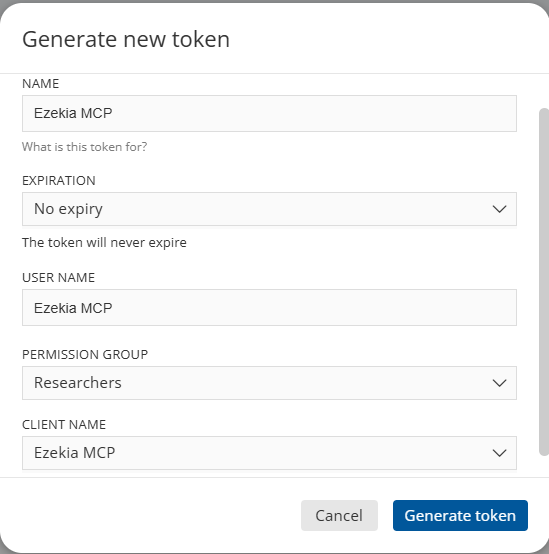
- Click Generate token
- Copy and store the token securely in the same manner as a password (the token is shown once and cannot be retrieved later)
Recommendation
For most organisations, use a single service API token when configuring the MCP connector app. End users do not generate or manage API tokens.
Step 2: Add Ezekia MCP to OpenAI Agents
In OpenAI:
- Go to the Agent Builder / Workflows area
- Add a new Tool / Connector
- Choose MCP (Model Context Protocol)
- Enter the following:
- Endpoint URL:
https://mcp.ezekia.com - Authentication:
Use your Ezekia API token
- Save and enable the connector
For full OpenAI documentation, see:
https://platform.openai.com/docs/guides/tools-connectors-mcp#page-top
Step 3: Configure Your Agent or Workflow
Once connected, your agent can call Ezekia actions directly.
You can now:
- Define prompts that trigger structured actions
- Chain multiple steps into workflows
- Combine Ezekia data with reasoning and formatting
Permissions and Security
- The agent can only access what the API token allows
- All actions are performed under that token’s permissions
- You control whether it can:
- Read data only
- Create and update records
Recommended setup:
- Individual users → create a connector app (for ChatGPT-style use)
- Agents/workflows → shared service account token
How This Differs from ChatGPT MCP App Usage
- ChatGPT (UI):
Best for interactive, one-off queries and updates - OpenAI Agents & Workflows:
Best for:- Automation
- Repeatable processes
- Multi-step logic
- Background execution
Supported Actions
Your OpenAI agent can perform actions such as:
- Searching people, companies, projects, and tasks
- Creating and updating records
- Managing candidates within projects
- Adding and updating tasks and notes
A full list of supported actions is available in the main MCP documentation
Best Practices
- Grant the minimum permissions required on API tokens
- Use read-only tokens where appropriate
- Review token access periodically
- Test the connector before wider internal rollout
Security & Permissions
- ChatGPT can only access data allowed by the configured API token
- All actions respect Ezekia’s permission model
- API tokens can be revoked at any time
- No OpenAI credentials are shared with ChatGPT for MCP usage
Getting Help
Ezekia Support can help with:
- MCP availability and setup
- API token generation and management
- Verifying ChatGPT connectivity to Ezekia
We’re unable to provide support for:
- ChatGPT prompt design
- Custom workflows or automation logic
- General ChatGPT configuration
For Ezekia-specific questions, contact support@ezekia.com.