
Provided you have an OpenAI connection, you can automate almost any actions in Ezekia.
Simply select a trigger from one of many options, then use plain English to tell the AI what you want to happen when the trigger occurs. We have provided several examples to get you started.
This interactive video explains the process (if you prefer a more traditional tutorial video, click here).
Provided you are an administrator, there are some example automations already available to use. These can simply be activated to try them, or you can adjust them as required. You can, of course, create your own automation.
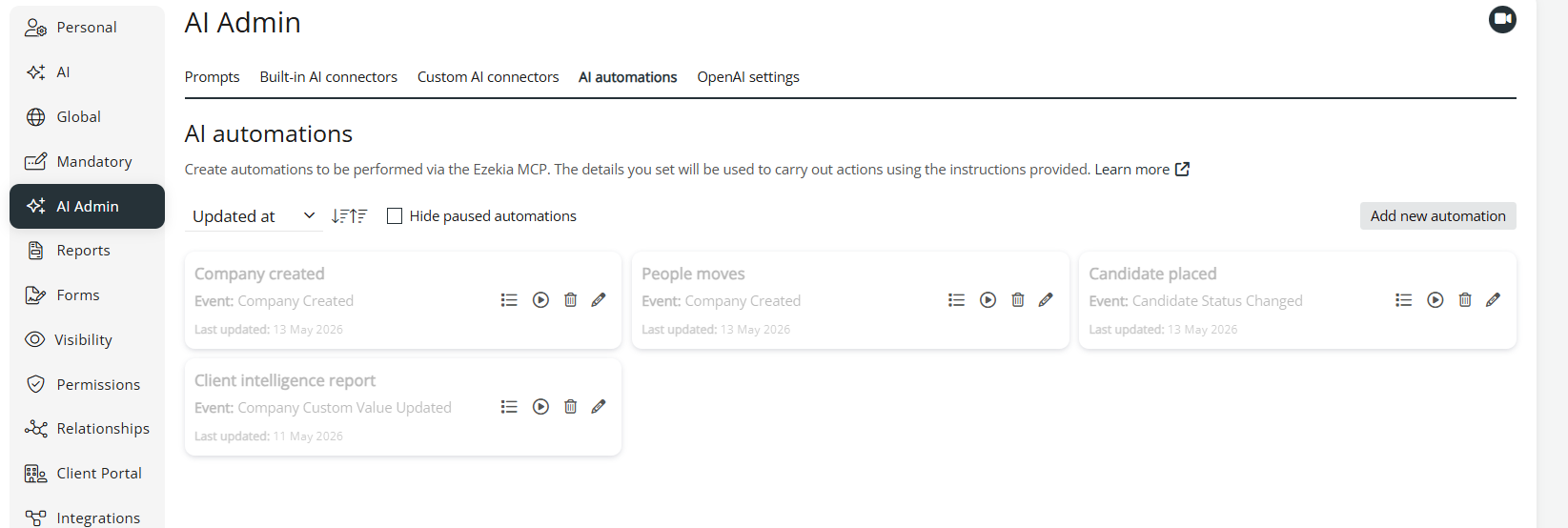
| Name | Automation purpose |
| Company Created | Populate an empty company record with a logo and information from the internet. |
| People Moves | Finds people movement news from the internet for a new company record. Any people records found are added as contacts on the company, and the news is added as a note. |
| Candidate Placed | When a candidate is set to Placed, add the assignment name and client as a new position on the candidate. |
| Client Intelligence Report | This requires a new company custom toggle field 'Client intelligence report' before it can be used. If this is set to Yes, a detailed company report is built and added as a note on the company. |
Automation dashboard icons:
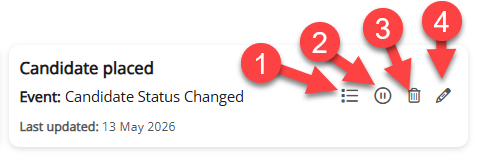
1. View run log for this automation.
2. Inactivate the automation. If the automation is inactive, the 'Run automation' icon will be shown instead.
3. Delete automation.
4. Amend automation.
Update Automation Panel
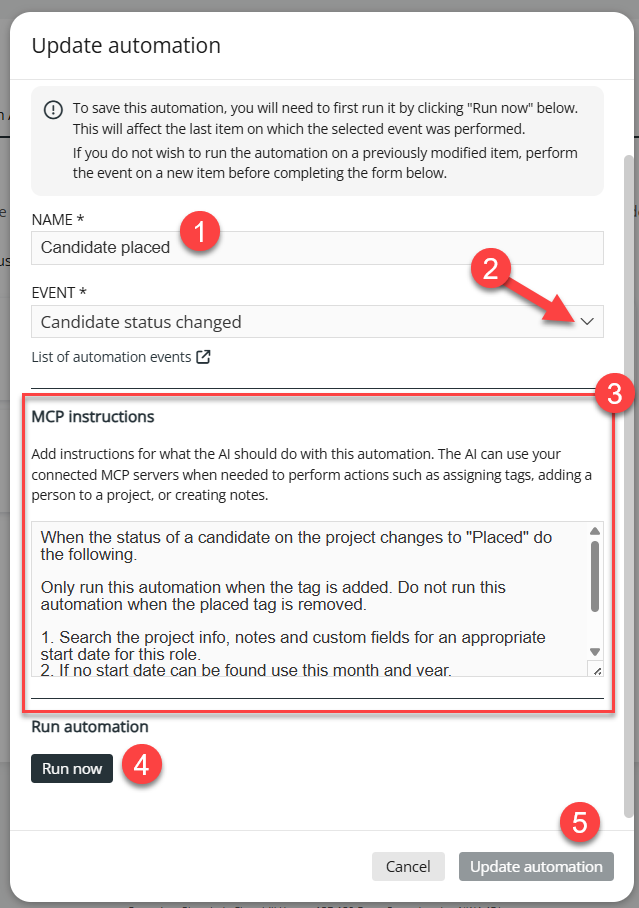
1. Use a suitable name for the automation.
2. The trigger event that causes the automation to run. There are over 80 triggers available.
3. MCP Instructions are a natural language instruction to tell AI what should happen when a trigger fires. You should usually start by refining whether the actions should only run in certain situations. After that, describe in clear terms what should happen. You can find more details on creating MCP instructions in this FAQ page: AI Automations and MCP Tools
4. If you click Run Now, the action will run on the most recent record to have triggered. If you change the example or are working on your own automation, you need to run it before you can save the automation with 5. 'Update Automation'.
Handy Tip
AI is very good at building prompts for AI - you could use Sidekick to trial the action you want to perform, and when it is working perfectly, you could ask Sidekick to provide a good prompt to perform the action using AI automation.