
The Ezekia Sidekick allows you to update Ezekia fields with data provided in the Sidekick panel.
Remember AI can get it wrong; it might suggest it can update something for you when it can’t, or it might gave inaccurate answers. Always check the results returned by AI.
Sidekick will only be available if you have a subscription to OpenAI integrated with Ezekia. This FAQ page describes how administrators can set up that integration: How do I set up and use OpenAI?
The Sidekick interface is accessed using the 'Stars' icon on the right of every screen (1).
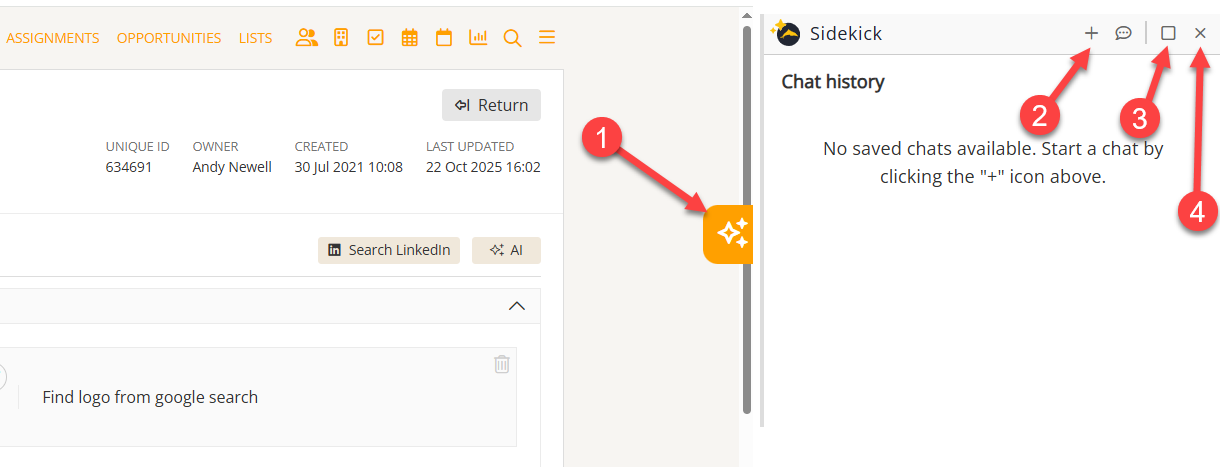
- Open Sidekick.
- Start a new question.
- Embed Sidekick within the browser. This allows the panel to overlay the right side of Ezekia, rather than making the Ezekia page smaller.
- Close Sidekick.
Updating fields with information from Sidekick
Select the Ezekia record that you want to update and open Sidekick. You can start a new question using icon (2) above.
Sidekick will often give you suggested questions that relate to the type of record you are on. You can select these by clicking on them, or you can enter your own question in the text box at the bottom of the page. After a few seconds, the answer will be returned.
To put the answer into an Ezekia field, use the 'Copy' icon (3, below) to copy the answer into the clipboard, and then paste it into the desired field.
Icons
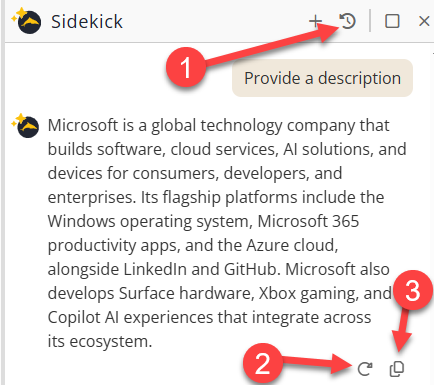 1) Question history. This allows you to rerun previous questions or delete them from the history.
2) Retry. This instructs OpenAI to answer the same question again.
3) Copy. Copies the answer to the clipboard, allowing it to be pasted into the Ezekia field of your choice.
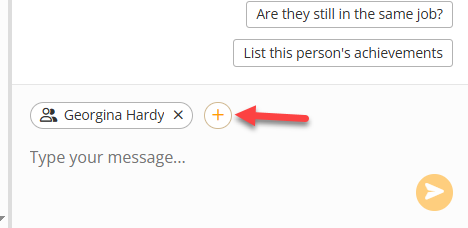
In the text entry box, you will see the current context (the record name or screen that you are on). You can add more context to this by clicking the 'plus' icon. This is helpful if, for example, you want to examine a specific person in relation to a particular company.
Using Sidekick to analyse data
You are not restricted to summaries of records - you can ask anything you want to, even on list views. Often, you will be prompted with suggestions depending on the record type, but you can still ask your own question, and Sidekick will answer according to the data available in the record.
Adding or updating Sidekick prompts
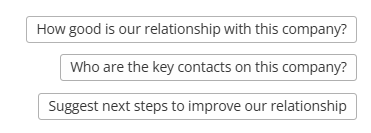
You are not restricted to the prompts Ezekia provides on any particular pages. Your administrators can add, remove or update the prompts available on any particular record types or pages within those record types.
To update your prompts, the administrator should navigate to settings, AI Admin. There are tabs available for Projects, Companies and People records.
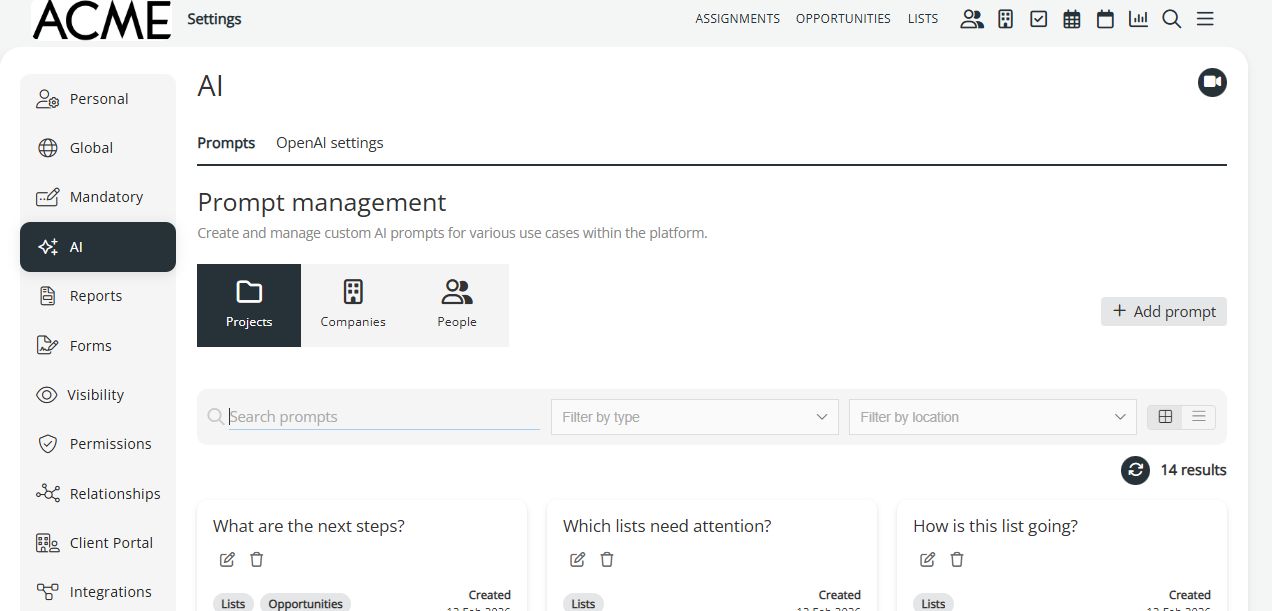
When you add or update a prompt, you will have further options regarding the particular project type to use, and on which pages the prompt should only be available on.
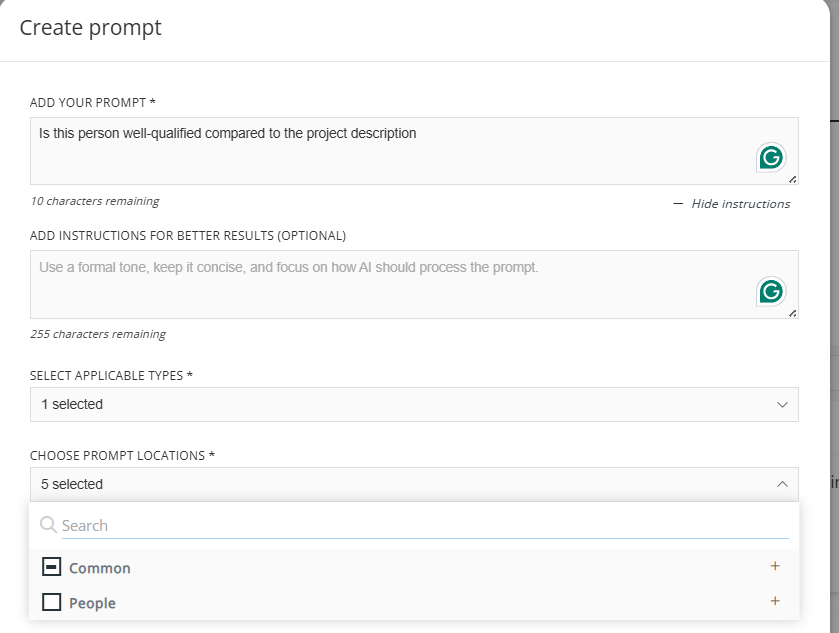
Once updated, the changes will be available to all of your firm's users. summaries of records - you can ask anything you want to, even on list views.
Using Filters with AI
Note that the number of records are limited to the first 500 in the view. OpenAI also restricts the amount of data that can passed to it, so if the records selected contain lots of information like notes or emails, then it will be rejected by OpenAI. If you meet this situation you should reduce the number of records sent to OpenAI by using the filter options.
AI has a known issue where long lists of records can cause records in the middle of the data to be overlooked by the AI. To overcome this, you can use the filter panel in list views to restrict the data to just the relevant records. This will help focus the AI in list views on just the important records.