Sequences in Ezekia allow you to run email campaigns for people you select, where you can send repeat emails to the same people until they reply. You can set person tags and notes at any stage of the process, or if the person unsubscribes or replies.
Tags Used In Sequencing
Before setting up a new sequence, it is a good idea to create person tags in case someone replies or unsubscribes. This will make it easy to identify new replies using Query Builder.
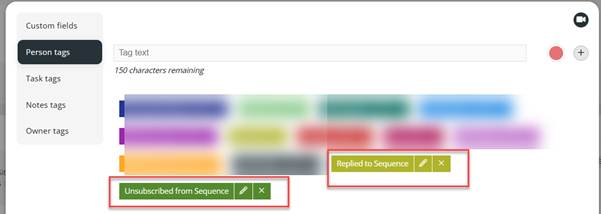
If you want to, you could also create note tags to make it easy to identify the types of notes being recorded by Sequencing.
Signature & Integration
You will probably want to include your signature, so make sure your signature looks how you want it to appear. You can find it in your Settings page. While you are there, check that your integration with Outlook is configured and has a green tick.
Sequences
The next step is to create your first sequence. You can simply create a new sequence, or if you want to use the sequence more than once, you can create a template. The process for both is similar.
Use the 3-line icon to navigate to the Sequences tab. In this example, I will create a new sequence from scratch, rather than creating a template. Click ‘Create Sequence’.
This gives you the option to start from scratch, use a template (if you have set one up), or copy an existing sequence if you already have one.
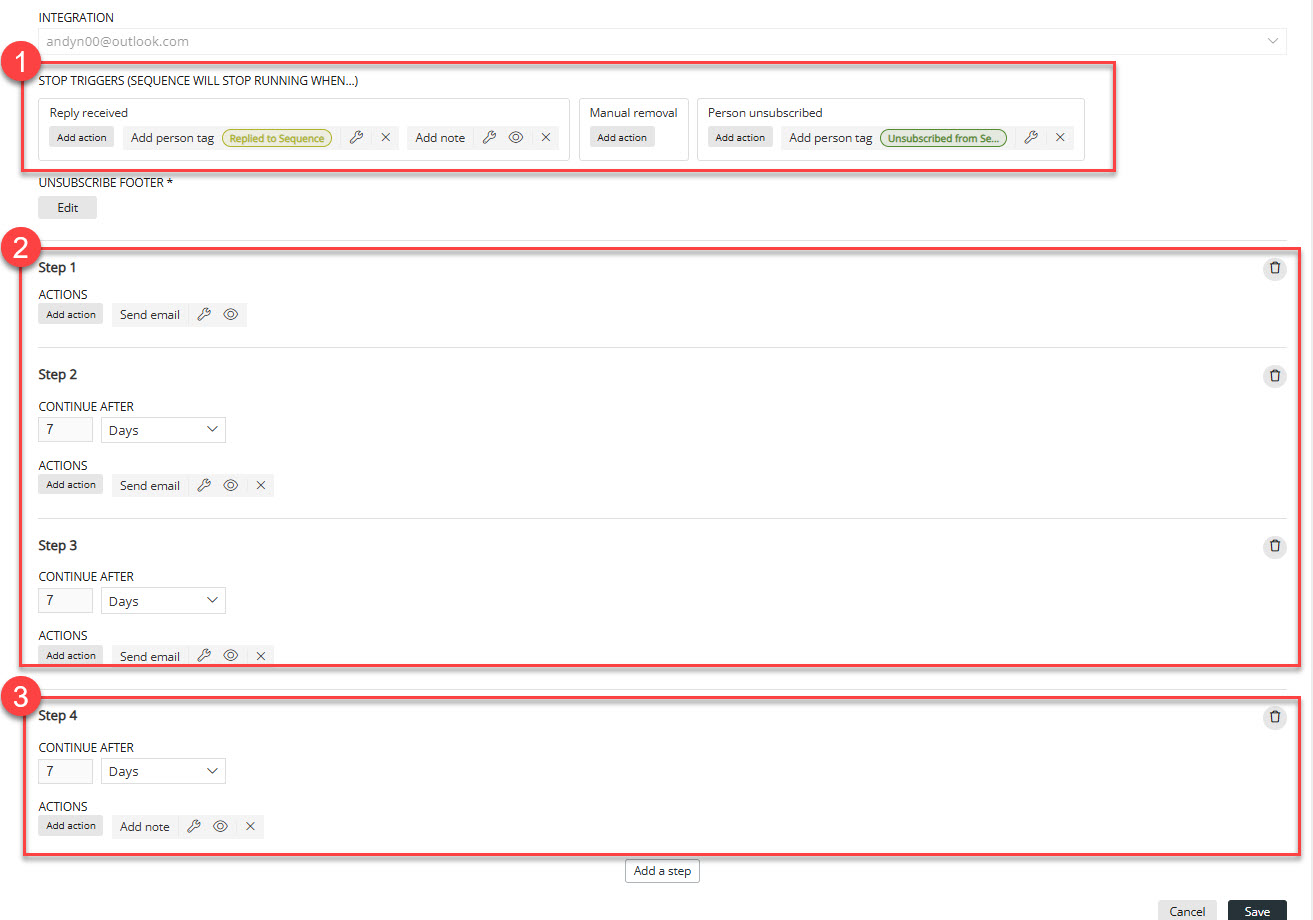
1. Give the sequence a descriptive name
2. Add an optional description.
3. Stop Triggers - the sequence will stop for a person if one of 3 things happens:
- The recipient replies
- The recipient unsubscribes
- The person is removed from the sequence by the user
This section lets you decide what actions to take in each case (namely, to add a note, or a person tag, or both, or do nothing). If you add one of the options, you can define which tags or note text to add to the person using the ‘spanner’ icons.
4. The unsubscribe footer. This is automatically included at the bottom of the email, but you can edit the wording used here.
5. Sequence Steps. You can add as many steps as you want
Adding a person to a sequence
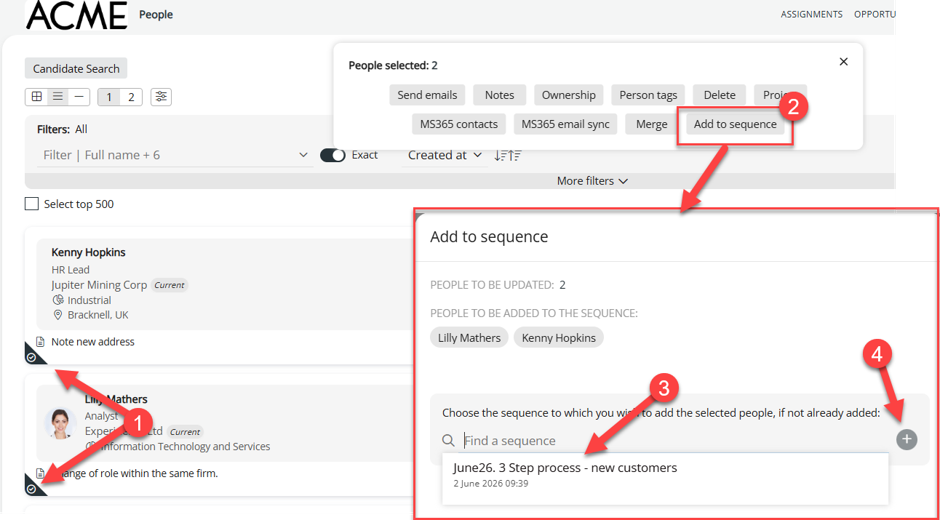
You can add people to a sequence from any people dashboard, including the candidate search screen and Query Builder ‘People’ and ‘Candidate’ areas. As soon as you add a person to a sequence, the first step in the sequence will run. You can add more people to the same sequence at any point.
This is the process:
Sequence progress
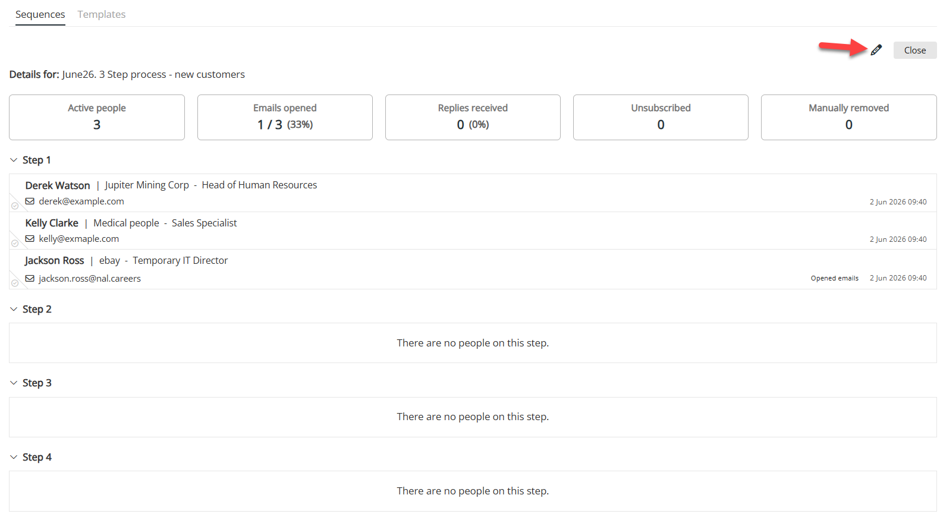
After you have added people to the sequence, the sequence screen will provide a summary of every sequence and its progress.

The ‘Step stats’ button will give you a step-by-step breakdown of your progress. If you need to amend the sequence, click the pencil icon on either screen.
Removing a person from a Sequence
You can remove people from the sequence on the ‘Step stats’ screen. This is the process.
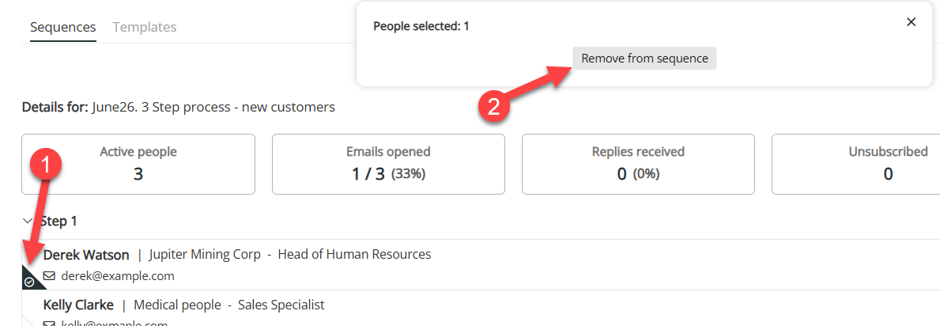
Unsubscribes
Recipients can unsubscribe by clicking the link in the email footer. If they do, they are shown
a confirmation page ("Are you sure you want to unsubscribe from receiving campaign emails?"). If they confirm this, they will see "You have successfully unsubscribed."
Once unsubscribed, the person is stopped on the current sequence and cannot be added to any future sequence until that status changes.
Unsubscribed people are clearly flagged in the app, and unsubscribes count toward the sequence's stats.
TroubleShooting
The Sequences page shows a "Microsoft integration" warning.
You haven't connected a Microsoft account. Go to **Settings → Microsoft integration** and connect one.
My sequence stopped sending.
The most common cause is a missing or disconnected Microsoft integration.
Re-connect/re-authenticate the integration; processing resumes automatically.
Check the sequence list for a *"Missing integration"* / *"Unauthenticated
integration"* flag.
I can't add some people.
They likely either have no valid email address, are already on the sequence, or have unsubscribed. You can proceed with the remaining valid people.
Can a person be in more than one sequence?
Yes. You'll be warned if selected people are already on another sequence, so you can decide intentionally.
Why can't I change the sending account?
Once a sequence has people, the Microsoft integration is locked to keep sending consistent. Create a new sequence if you need a different account.
Who can see/edit firm-wide templates?
Anyone with "View Sequences page" permission can use firm-wide templates. Only users with "Firm-wide sequence access & template management" permission can create/edit/delete them.
How are replies detected?
Through your Microsoft integration; Ezekia checks for responses before processing the next step and stops the sequence for anyone who has replied.
Was this article helpful?
That’s Great!
Thank you for your feedback
Sorry! We couldn't be helpful
Thank you for your feedback
Feedback sent
We appreciate your effort and will try to fix the article