Query Builder AI helps you work with data more quickly by using natural language. It provides two AI-powered capabilities:
- Create and modify queries using AI by describing the data you want to retrieve or how you'd like to change an existing query in plain English.
- Analyse query results using AI by asking questions about the data returned.
Important: AI can occasionally produce incorrect or incomplete results. Always review the generated query and verify any AI-generated answers or queries before relying on them.
This functionality is only available if your organisation has an OpenAI subscription integrated with Ezekia. This FAQ page describes how administrators can set up that integration: How do I set up and use OpenAI?
AI Query Creation in Step 1
Instead of manually building a query, you can simply describe the information you want to retrieve in plain English here:
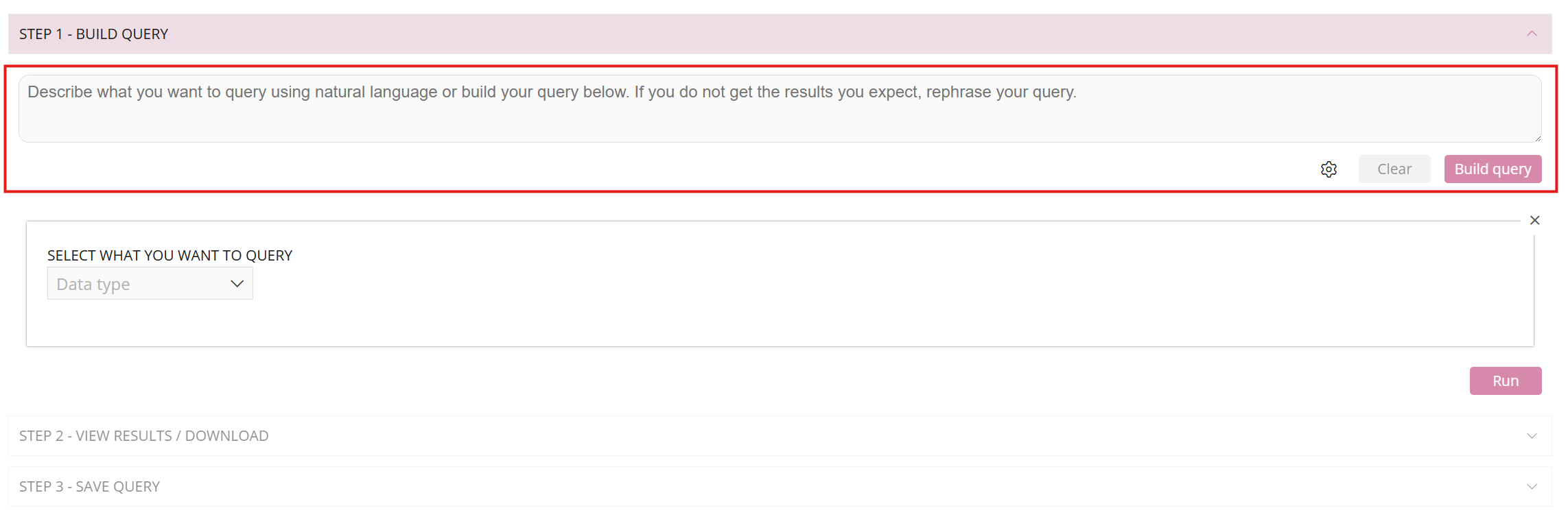
If you prefer to build queries yourself, or would like to learn how Query Builder works in more detail, see Query Builder Screen Functions:
AI Query Builder uses the same underlying Query Builder, so any query it creates can be reviewed, edited and refined manually before you run or save it.
For example, you might ask:
- Show me all assignments created this month grouped by consultant.
- List all candidates added to assignments this week.
- Show me every meeting tagged "BD" during the last quarter.
- Display all opportunities created this year with their probability and owner.
- Show me sales activity by consultant this week, including meetings, tasks, notes, emails and opportunities.
- Add the Company, Assignment Status and Revenue columns to my current query.
- Remove all address fields and only show each candidate's Name, Current Company and Job Title.
- Group the results by Consultant and sort by Assignment Created Date.
Query Builder AI will interpret your request and automatically generate the appropriate query, including filters, output columns, sorting and grouping where applicable. It can also amend an existing query. For example, you can ask it to add or remove output columns, apply additional filters, change the sort order, or group the results differently. When requesting changes to output columns, it is often helpful to be specific about exactly which fields you would like to include or exclude.
After the query has been generated or updated, you can:
- Review and edit it manually if required.
- Run it immediately.
- Save it for future use.
- Add it to a KPI Dashboard.
- Schedule it to run automatically.
Every query generated by AI is a standard Ezekia Query Builder query, so you can continue refining it using all of the existing Query Builder features and filters.
As with any AI-generated content, you should review the generated query to ensure it matches your requirements before running it.
AI Analysis of Query Results in Step 2
Once you've run a query, you can ask AI questions about the returned data here:
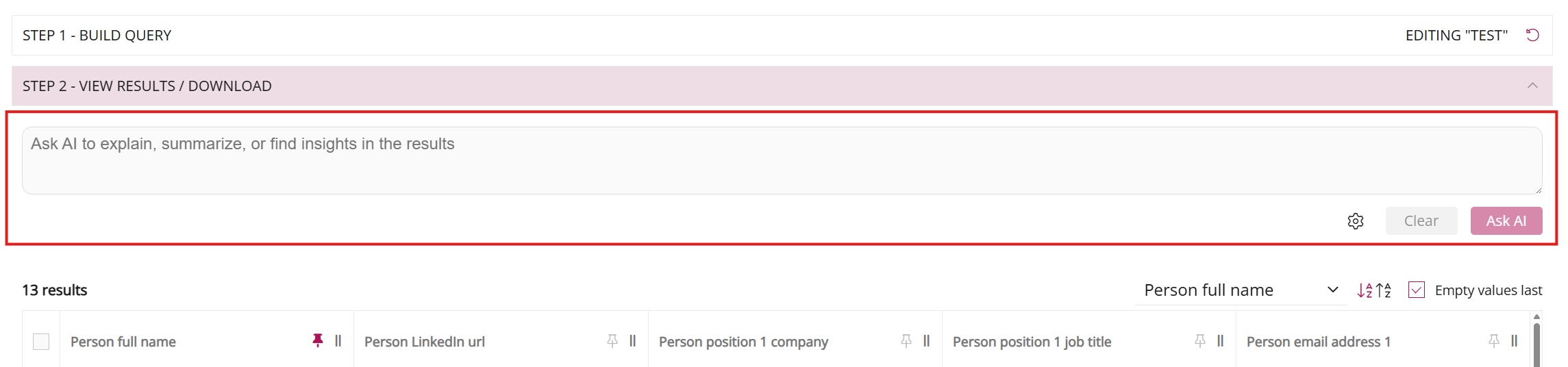
For example, if your query includes assignment revenue, you could ask:
- Who are the top three best-performing researchers by revenue?
- How much revenue have we earned in each sector this year?
- Who has arranged the most meetings tagged "BD" this month?
- Who are the top three fee split earners this month?
- What is our average revenue per assignment this year compared to last year?
- Which consultant created the most opportunities this quarter?
- Which client has generated the highest revenue this year?
Unlike other AI features in Ezekia, there is no predefined prompt. Simply type your question into the Ask AI box after running your query and click Ask AI.
This AI only has access to the data returned by your query, so this is great for targeted analysis. If you'd like it to analyse a particular field, make sure that field has been included in the query output before asking your question.
For example, if you ask: Which consultant generated the most revenue?
the query results must include both the Consultant and Revenue columns. The AI response can be copied to your clipboard but is not otherwise stored within Ezekia. Sidekick can see all of your data if you need broader analysis.
A Note on Permissions
Access to Query Builder AI requires:
- An active OpenAI integration configured by your administrator.
- Permission to use the Query Builder download functionality (configured on the user permissions screen).
Once authorised, you'll see:
- AI Query Builder when creating or editing queries.
- Ask AI after running a query.
If you don't see these options, please contact your administrator to confirm that OpenAI has been configured and that you have the necessary permissions.
Was this article helpful?
That’s Great!
Thank you for your feedback
Sorry! We couldn't be helpful
Thank you for your feedback
Feedback sent
We appreciate your effort and will try to fix the article