AI Sidekick
The Ezekia Sidekick lets you ask questions about your data and update Ezekia fields with the information it returns.
Remember AI can get it wrong. It might suggest it can update something for you when it cannot, or it might give inaccurate answers. Always check the results returned by AI.
For an overview of all the AI features in Ezekia and where to begin, see AI in Ezekia: what is available and where to start.
Sidekick runs on your firm's own AI subscription. An administrator chooses whether that is OpenAI or Anthropic (Claude), and the same choice powers both Sidekick and your AI Automations. This FAQ page describes how administrators set up the integration: How do I set up and use AI?
Choosing your AI provider and model
An administrator sets this under Settings, then AI Admin, then the Provider settings tab, which is headed 'AI providers'. You will need the AI Admin permission to see the tab:
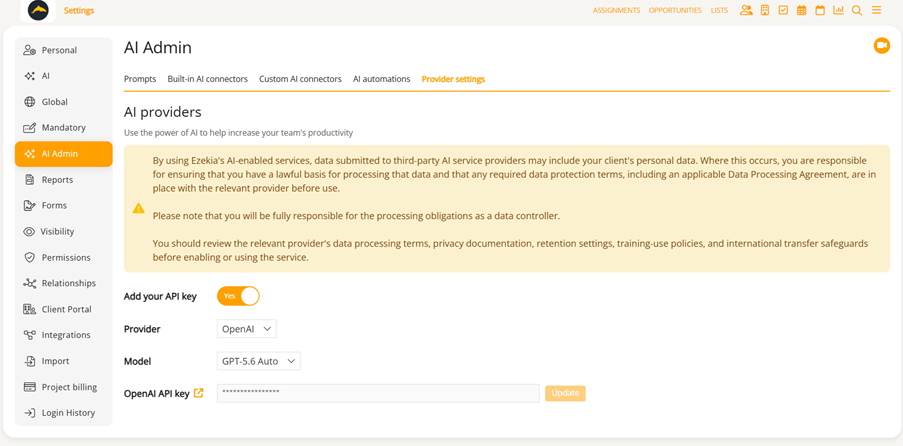
Set Add your API key to Yes, choose your Provider, then choose a Model. Paste your key into the field below and save it.
Each provider needs its own key. Anthropic keys begin with sk-ant- and are validated when you save them, so you will be told straight away if a key is wrong, revoked or out of quota.
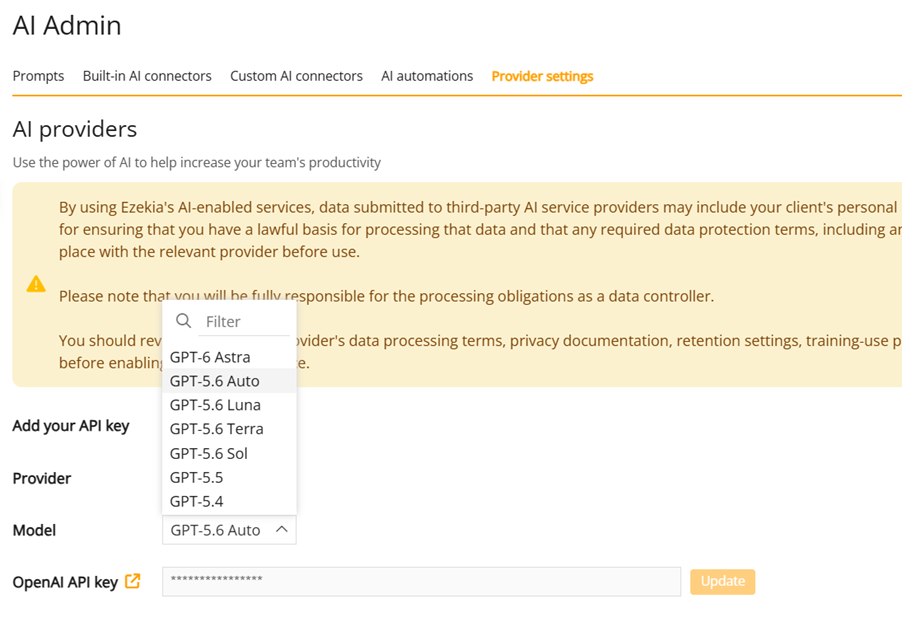
The models available are:
OpenAI: GPT-6 Astra, GPT-5.6 Auto, GPT-5.6 Luna, GPT-5.6 Terra, GPT-5.6 Sol, GPT-5.5, GPT-5.4
Anthropic: Claude Fable 5.1, Claude Auto, Claude Sonnet 5, Claude Opus 5, Claude Haiku 4.5
Before enabling AI, read the data protection notice shown at the top of the panel. Client personal data may be sent to your AI provider, you remain the data controller for that processing, and you should review the provider's data processing terms, privacy documentation, retention settings, training-use policies and international transfer safeguards.
Auto
GPT-5.6 Auto and Claude Auto are the default models for their providers. With Auto selected, Ezekia chooses a model for each question based on how complex the request is, using a faster, cheaper model for simple questions and a more capable one for complex ones.
If you would rather fix the model yourself, select a specific one from the list instead.
The step that chooses the model is itself a small AI request made against your own API key.
Opening Sidekick
The Sidekick interface is accessed using the 'Stars' icon on the right of every screen (1).
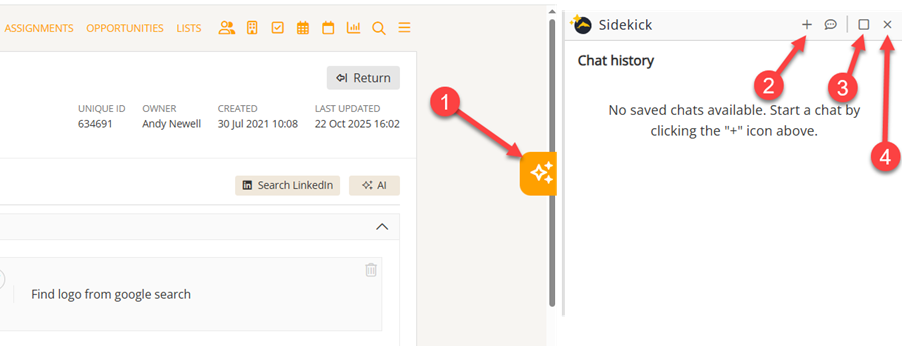
- Open Sidekick.
- Start a new question.
- Embed Sidekick within the browser. This allows the panel to overlay the right side of Ezekia, rather than making the Ezekia page smaller.
- Close Sidekick.
Icons
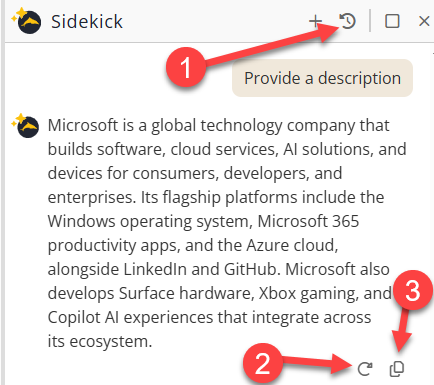
- Question history. This allows you to rerun previous questions or delete them from the history.
- Retry. This asks the AI to answer the same question again.
- Copy. Copies the answer to the clipboard, allowing it to be pasted into the Ezekia field of your choice.
Asking from anywhere
You can open Sidekick from anywhere in Ezekia and ask about any part of the system. You do not need to be on a record to ask about it.
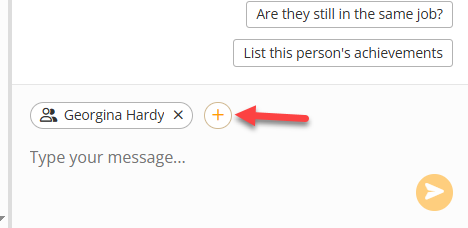
Where you are on a record, the text entry box shows the current context, which is the record name or screen you are on. You can add further context using the 'plus' icon. This is helpful if, for example, you want to examine a specific person in relation to a particular company.
Updating fields with information from Sidekick
Select the Ezekia record that you want to update and open Sidekick. You can start a new question using the 'new question' icon above.
Sidekick will often give you suggested questions that relate to the type of record you are on. You can select these by clicking on them, or you can enter your own question in the text box at the bottom of the panel. After a few seconds, the answer will be returned.
To put the answer into an Ezekia field, use the 'Copy' icon to copy the answer to the clipboard, then paste it into the desired field.
Adding attachments to Sidekick
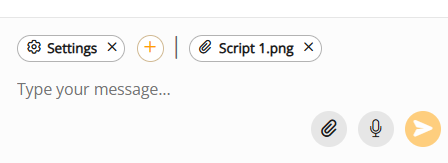
You can add up to two files per message, either by using the 'Add file' button or by dragging them into the Sidekick panel. Files are scanned for viruses on upload.
Sidekick can read the contents of a file and answer questions about it, summarise it, or use the information in it to update fields on an Ezekia record. A common use is dropping in a CV and asking Sidekick to update the person's profile from it.
To attach the file to a person, company or project record as a document, ask Sidekick to do so.
Supported file types include csv, xls, xlsx, doc, docx, pdf, ppt, pptx, txt, html, rtf, png, jpg, gif and tif.
Check anything Sidekick writes to a record from an attachment before you rely on it. Parsing a document is exactly the kind of task where AI can misread or misattribute information, so review the fields it has changed.
Using Sidekick to analyse data
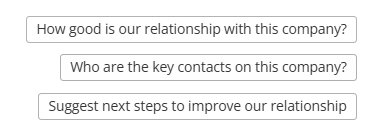
You are not restricted to summaries of records. You can ask anything you want to, even on list views. You will often be prompted with suggestions depending on the record type, but you can still ask your own question, and Sidekick will answer according to the data available.
Using filters with AI
Sidekick works through the records available to it in a list view.
Filtering before you ask is worth doing. Narrowing the list keeps the answer focused, returns it faster, and reduces the cost of the request. For questions about people, filter in the People section first.
Use the filter panel in list views to restrict the data to just the relevant records. Some examples:
- Focus on relevant criteria. If your query is about a specific role, use the Person title filter to show only matching entries. If you are interested in candidates in a certain location, narrow those people down first.
- Date filters. Use Note created at or Assignment last updated to restrict entries to recent records.
- Assignments. Use filters such as Assignment status, Assignment client or Assignment industries.
- Tags and statuses. Use Person tags or Current status to focus on a particular group.
Adding or updating Sidekick prompts
You are not restricted to the prompts Ezekia provides on any particular page. Your administrators can add, remove or update the prompts available on any record type, or on particular pages within those record types.
To update your prompts, the administrator should navigate to Settings, then AI Admin. There are tabs available for Projects, Companies and People records.
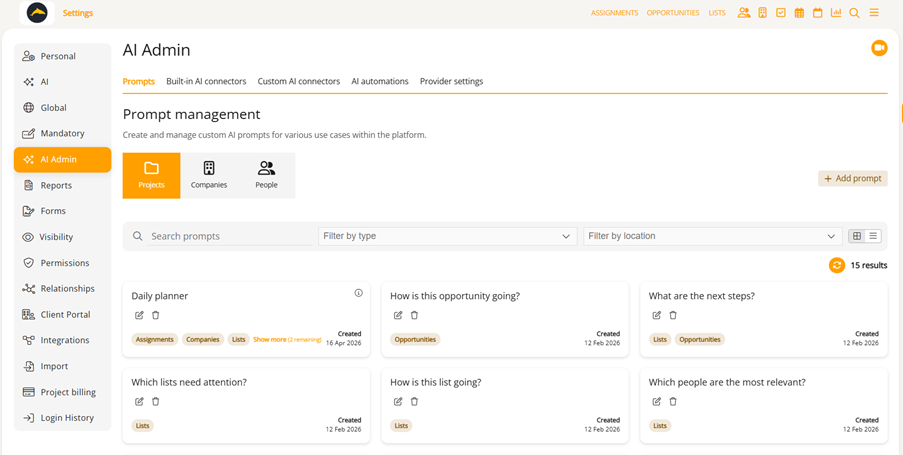
When you add or update a prompt, you will have further options regarding the particular project type to use, and which pages the prompt should be available on.
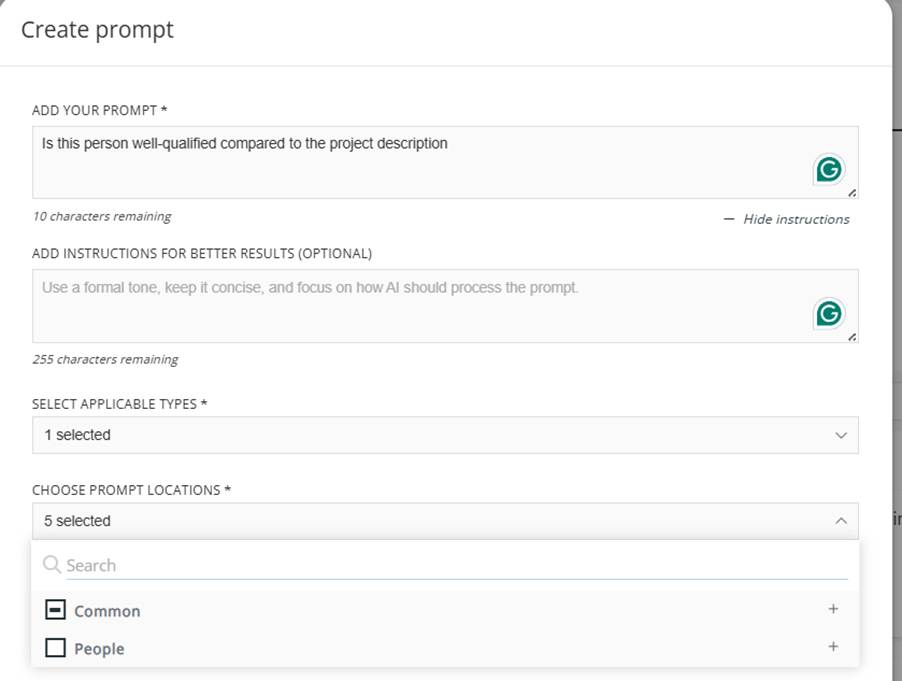
Once updated, the changes will be available to all of your firm's users.
If something goes wrong
If Sidekick returns an error rather than an answer, the message usually indicates whether the problem is with the request or with your AI subscription. Messages mentioning high demand, quota or an unavailable model come from your AI provider rather than from Ezekia, and generally mean your account has hit a rate or spend limit.
If a request times out, apply filters to reduce the amount of data being sent and try again. See also: Token limit message using Sidekick AI or the Query Builder Analyze.
If you are still stuck, or you need help setting up AI for your firm, please contact support@ezekia.com
Was this article helpful?
That’s Great!
Thank you for your feedback
Sorry! We couldn't be helpful
Thank you for your feedback
Feedback sent
We appreciate your effort and will try to fix the article