Depending on your organisation's Microsoft 365 settings, an administrator may need to approve the Ezekia Outlook Integration before it can be used. If you see a "Need admin approval" message like the one below when trying to integrate your email, your admin will need to approve the integration.
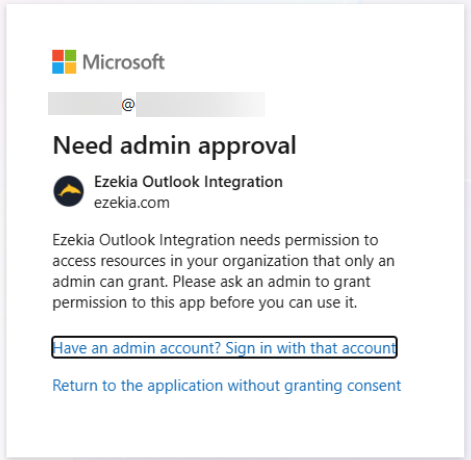
Approving from the Microsoft approval screen
Your administrator will need to follow the steps below to approve the integration:
- Click "Have an admin account? Sign in with that account" on the Microsoft approval screen.
- Sign in using a Microsoft 365 Global Administrator, Cloud Application Administrator or Application Administrator account.
- Review the requested permissions.
- Click Accept to grant consent for your organisation.
After approval, users in your organisation will be able to connect their Outlook accounts to Ezekia without further issues.*
*An admin on your MS365 tenant can approve for all users within MS365, or if one of your MS365 admins is also an Ezekia user, they should see an additional checkbox to approve for all users when they integrate their account.
Approving from Microsoft Entra
Alternatively, your administrator can grant consent directly in Microsoft Entra:
- Sign in to the Microsoft Entra admin centre (entra.microsoft.com).
- Browse to Entra ID > Enterprise apps > All applications and find "Ezekia Outlook Integration". If it doesn't appear, remove the "Application type" filter and search again.
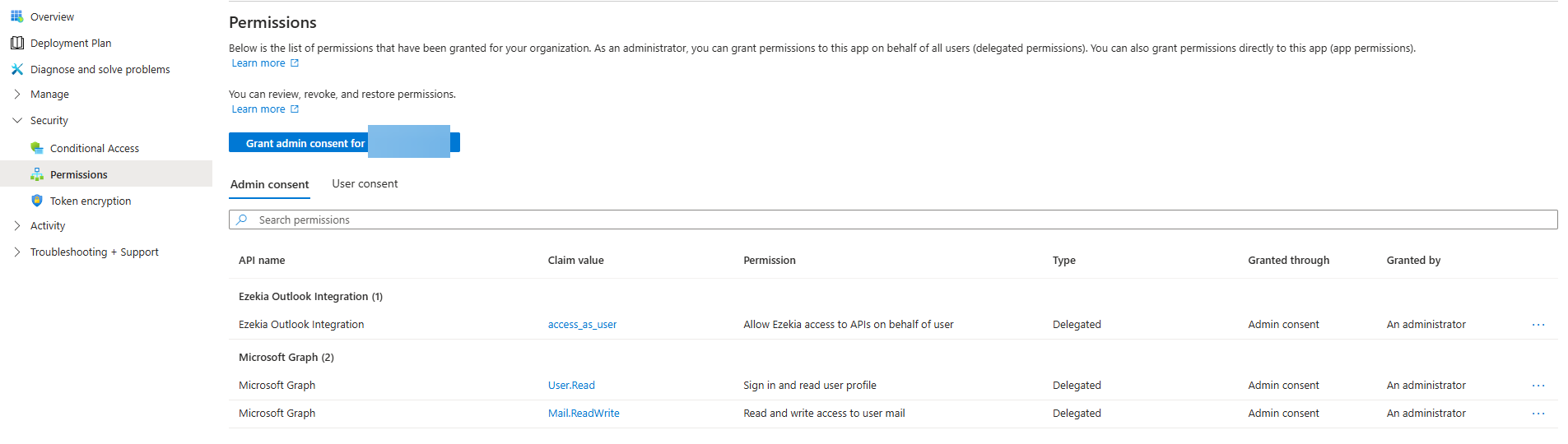
- Open the app and go to Permissions, then grant admin consent for your organisation.
The claims we use for the Outlook add-in are as follows:
access_as_user
Mail.Read
User.Read
The access_as_user scope is the newer one, which relates to the yellow permissions messages, so please make sure this is granted. The others should already be consented to if your firm uses the Outlook add-in or MS Integration.
When completed, it should look something like this:
If the approval screen keeps looping
If you sign in as an admin but keep returning to the approval screen, Microsoft is usually signing you in again with an account it already has (often the user's own account) instead of letting you choose the admin account. This is common in Outlook desktop, which signs in automatically with the account Windows or Office is using.
To get around this, open a private/incognito browser window, sign in to the Microsoft Entra admin centre with the admin account and follow the Entra steps above. If your organisation uses Privileged Identity Management (PIM), activate the admin role before you start. Once consent has been granted, close Outlook fully, sign back in and reconnect the integration.
Other things to check
Some admin roles, such as Exchange Administrator or User Administrator, can't approve applications. If the account you're using has one of these roles, the approval will need to come from someone with one of the roles listed above.
If there's no option on the Microsoft screen to request approval, the admin consent workflow is switched off in your Microsoft 365 tenant. This means requests won't appear in Entra under Admin consent requests. Instead, your admin can grant consent directly using the Entra steps above.
Note: The Mail.Read permission is delegated access for the authenticated user who approved the integration, not unrestricted tenant-wide mailbox access.
What type of add-in is it?
The Outlook add-in is a web add-in, not a VSTO add-in, so questions about VSTO do not apply. It is added from the Outlook 'Add apps' store and, depending on your Microsoft 365 settings, may need approval from your administrator. It works through the user's Microsoft email integration with Ezekia, which needs to be set up first, rather than as a separate data route. Through the add-in, the only mail content sent to Ezekia is what the user chooses: a selected email saved to a profile, or a selected attachment used to create a person, such as a CV.
Why does Entra show more permissions than the add-in uses?
The add-in itself uses delegated permissions only (access_as_user, Mail.Read and User.Read). When you approve the app in Entra, you will see a wider set of Microsoft 365 permissions. Ezekia's Microsoft email integration and its optional AI connectors share one app registration, so the consent covers both. The AI connector permissions are not used unless your firm enables those connectors in AI Admin. For more detail, see AI Connectors in the AI Sidekick (Enabling and Connecting). For hosting, encryption and other security details, see Data Retention in Ezekia: Roles, Responsibilities, and GDPR Compliance.
Was this article helpful?
That’s Great!
Thank you for your feedback
Sorry! We couldn't be helpful
Thank you for your feedback
Feedback sent
We appreciate your effort and will try to fix the article