Built-in AI connectors let the AI Sidekick work with the everyday tools your firm already uses. Once a connector is enabled and you have linked your account, you can ask the Sidekick about your emails, calendar, files, spreadsheets, tasks and messages, all without leaving Ezekia.
The following connectors are available:
- Microsoft Outlook
- Microsoft Teams
- Microsoft OneDrive
- Microsoft SharePoint
- Microsoft Excel
- Microsoft To Do
- Slack
How is this different from the Ezekia AI Server (MCP)? Built-in AI connectors bring information from external services into the AI Sidekick, inside Ezekia. This is the opposite direction to the Ezekia AI Server (MCP), which lets external AI tools such as ChatGPT or Claude connect to your Ezekia data. If that is what you are looking for, see Connect External AI Tools to the Ezekia AI Server (MCP).
How It Works
- An Admin enables the connectors your firm wants to make available.
- Each user connects their own Microsoft or Slack account from their personal settings.
- The AI Sidekick then uses that connection whenever you ask it something relevant, for example to summarise your recent emails or find a file.
The Sidekick works with your own account and your own permissions. It can only see what you can see. Connecting your account does not give anyone else at your firm access to your emails, files or messages.
For Admins: Enabling Connectors
- Go to Settings and select AI Admin: https://www.ezekia.com/#/settings/ai-admin
- Open the Built-in AI connectors tab.
- Use the toggle next to each connector to enable or disable it for your firm:
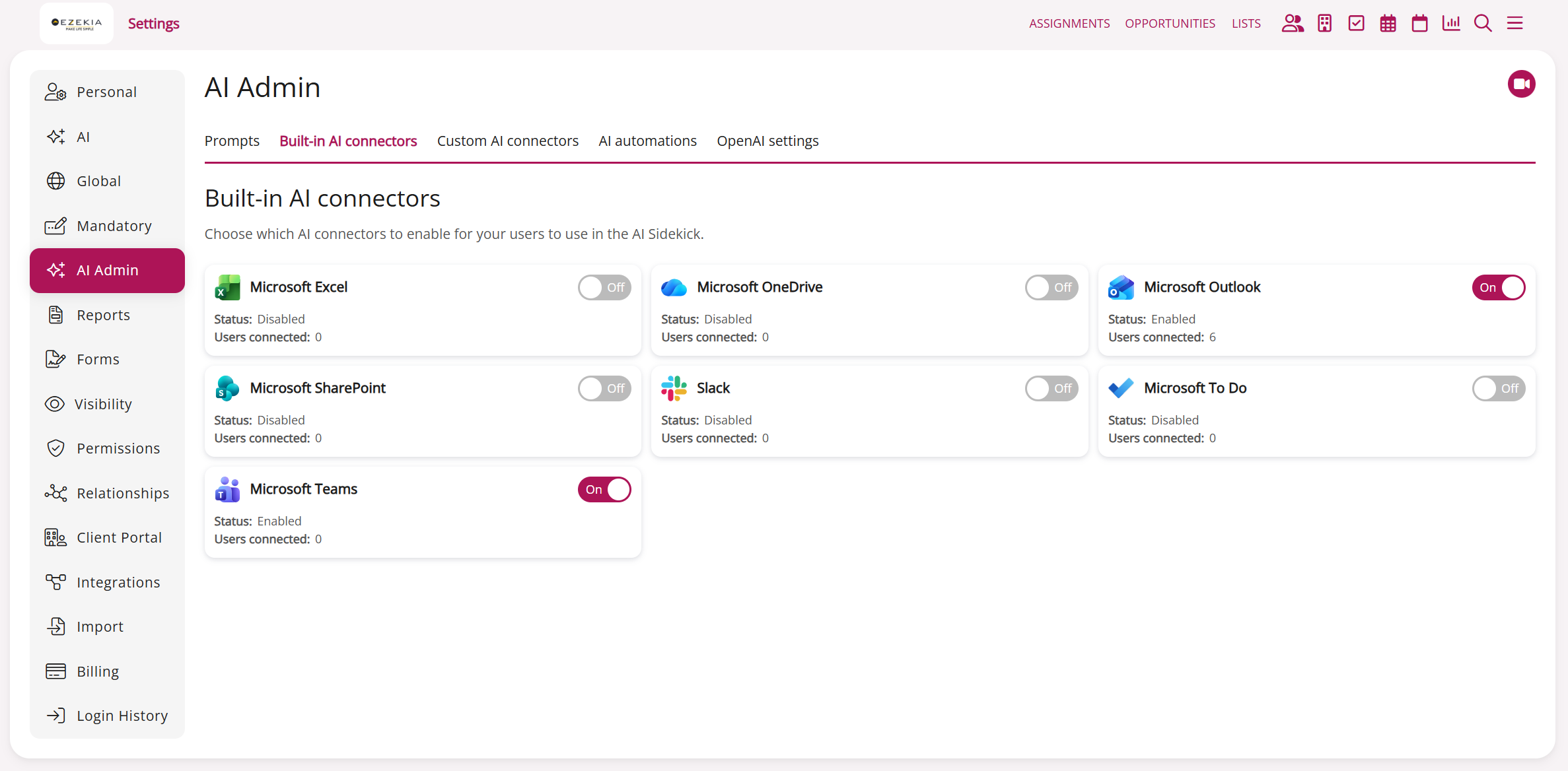
Each connector card shows its current Status (Enabled or Disabled) and a Users connected count, so you can see how many of your team have linked their accounts.
Enabling a connector makes it available to your users. It does not connect anyone automatically; each user still needs to link their own account from Settings, AI, under My AI connectors (see below).
Depending on your organisation's Microsoft 365 settings, an IT administrator may need to approve the connection the first time it is used. If your firm already uses the Microsoft email and calendar sync, this approval will already be in place, since the connectors and the sync share the same Microsoft app registration.
For Users: Connecting Your Account
- Go to Settings and select AI, or go straight to https://ezekia.com/#/settings/ai.
- Under My AI connectors, you will see the connectors your firm has made available. Each one shows Connected or Not connected.
- Select Connect on the connector you want to use. A browser sign-in page for that service will open.
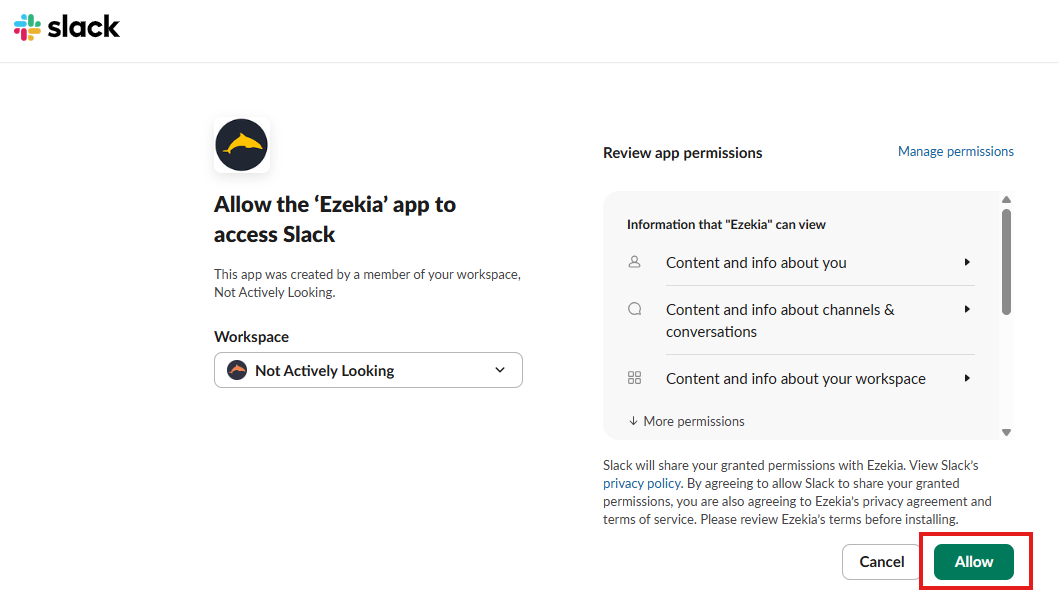
- Log in, review the permissions requested, and approve the access. For Slack, choose your workspace and select Allow.
Once the card shows Connected, you can simply ask the Sidekick questions that involve that service. You do not need to select a connector each time.
If you have already set up your Microsoft integration for email and calendar sync (under Settings, Personal), the Microsoft connectors connect automatically using that existing sign-in, so you may find them already showing as Connected.
Disconnecting
Slack or any other connector: return to My AI connectors and select Disconnect on the app card: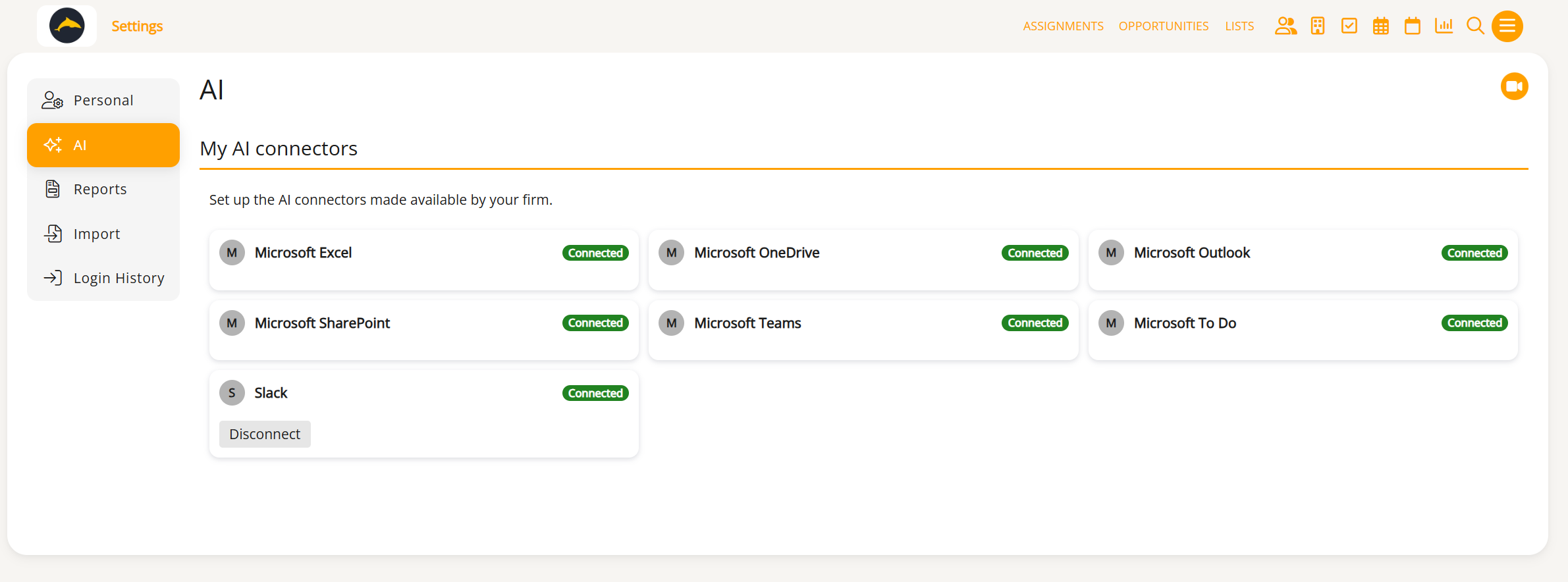
Microsoft connectors: the Microsoft connectors and your email and calendar integration are all part of one Microsoft app registration, so they connect and disconnect together. To disconnect them, remove your Microsoft integration under Settings, Personal, in the Microsoft integrations section (https://ezekia.com/#/settings/personal). Please note that this also stops your email and calendar sync with Ezekia. If you would like a particular Microsoft connector switched off, your Admin can disable it for your firm under AI Admin.
What Each Connector Can Do
Microsoft Outlook
Ask the Sidekick to read, search and summarise your emails, draft and send replies, and tidy up your inbox. It can also work with your calendar: checking your schedule, creating, updating or cancelling events, and setting reminders. It can look up your Outlook contacts too.
Microsoft Teams
The Sidekick can list your teams and channels, read and send channel messages, and read and send direct chat messages.
Microsoft OneDrive
Browse and search your OneDrive files and folders, find a file by name, and preview document contents so the Sidekick can summarise or answer questions about them.
Microsoft SharePoint
Search across your SharePoint sites, browse site document libraries, and locate and preview files. This is useful when the information you need lives in shared team sites rather than your personal drive.
Microsoft Excel
The Sidekick can open a workbook, list its worksheets, and read the data in them. That means you can ask questions about the contents of a spreadsheet, for example a candidate tracker or a fee schedule, without opening it yourself.
Microsoft To Do
Create tasks and task lists, review what is on your list, mark tasks as complete, and set, snooze or clear reminders.
Slack
Ask the Sidekick to read and search your Slack messages across public channels, private channels, direct messages and group messages, find files and people in your workspace, and send messages on your behalf. Messages the Sidekick sends appear in Slack as you, not as a bot.
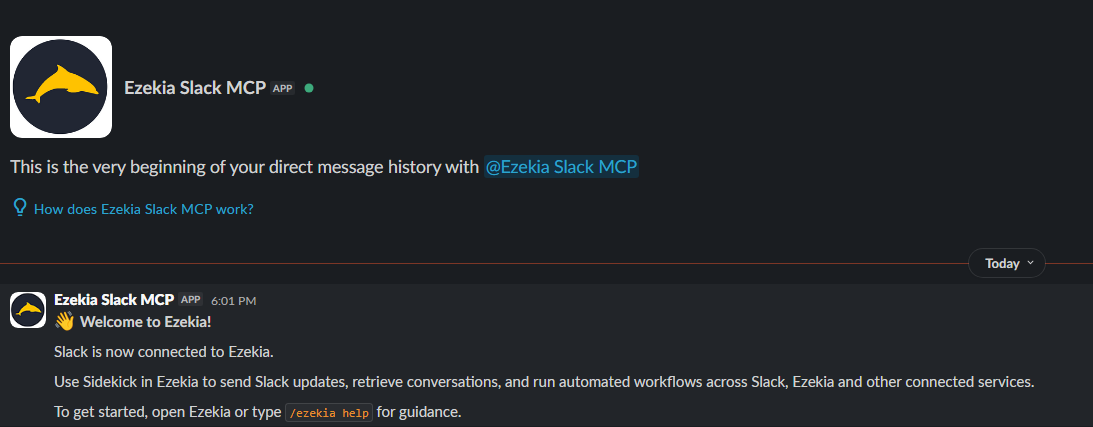
When you first connect, the Ezekia app sends you a welcome message in Slack confirming the connection, so you can check it worked from the Slack side too. You can also type /ezekia help in Slack for guidance.
Example Prompts
- "Summarise my unread emails from this morning."
- "What is in my calendar tomorrow afternoon?"
- "Find the fee proposal document in OneDrive and give me the key points."
- "Read the candidate tracker spreadsheet and tell me who is at shortlist stage."
- "Add a task to follow up with the client on Friday."
- "Send a message to the research channel in Teams to say the longlist is ready for review."
- "What did I miss in the research channel on Slack today?"
Exact phrasing can vary. The Sidekick will use the relevant connector automatically based on what you ask.
Data Access and Privacy
- You review and approve each service's permissions before it is connected. For the Microsoft connectors this happens as part of setting up your Microsoft integration; for Slack it happens when you select Connect.
- Connections are made per user. Your colleagues cannot see your emails, files or messages through their own Sidekick.
- The Sidekick can only access what your own account can access in Microsoft 365 or Slack.
- Admins can disable a connector for the whole firm at any time from AI Admin. If a connector is disabled, any existing user connections to it are revoked immediately.
Troubleshooting
I cannot see a connector under My AI connectors. Your Admin may not have enabled it yet. Ask them to check Settings, AI Admin, Built-in AI connectors.
A connector shows Not connected. Go to Settings, AI, My AI connectors and select Connect, then sign in to that service in the browser window that opens.
The Sidekick says it cannot access my emails or files. Check that the connector shows Connected under Settings, AI, My AI connectors, and that you connected the right account if you use more than one.
I am seeing permission errors. For Slack, try disconnecting and reconnecting from My AI connectors. For the Microsoft connectors, contact us at support@ezekia.com with a screenshot of the error before removing your Microsoft integration, as removing it also stops your email and calendar sync.
Example Slack Connector Flow: 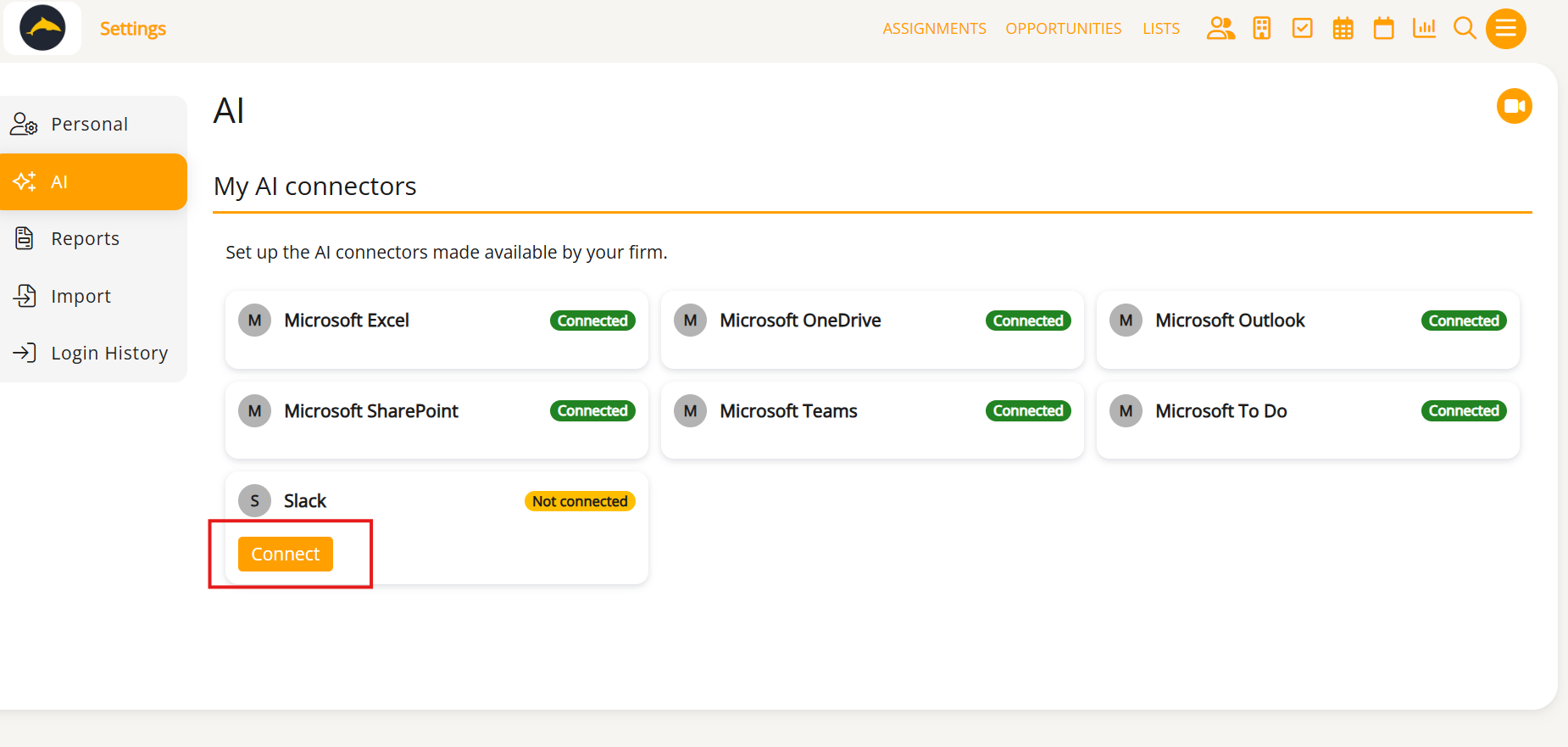
Was this article helpful?
That’s Great!
Thank you for your feedback
Sorry! We couldn't be helpful
Thank you for your feedback
Feedback sent
We appreciate your effort and will try to fix the article