
If your Ezekia Chrome Extension has stopped working or is acting a little strange, it may just need a quick refresh. You can fix this by removing it and reinstalling it.
Step 1: Remove the Current Extension
- Copy and paste this URL into Chrome or Edge: https://ezekia.com/install/chrome-extension
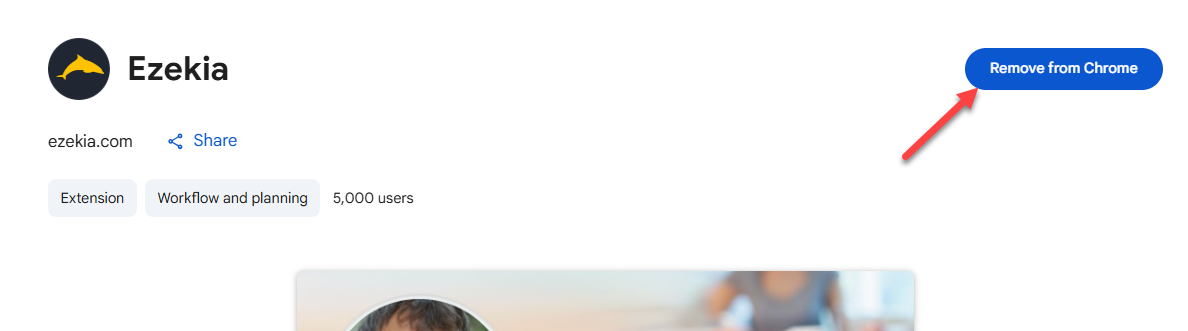
- In the page that appears, click 'Remove from Chrome'.
- If 'Add to Chrome' comes up instead, go to Step 2.
Step 2: Reinstall the Extension
• In Chrome, go to https://ezekia.com/install/chrome-extension
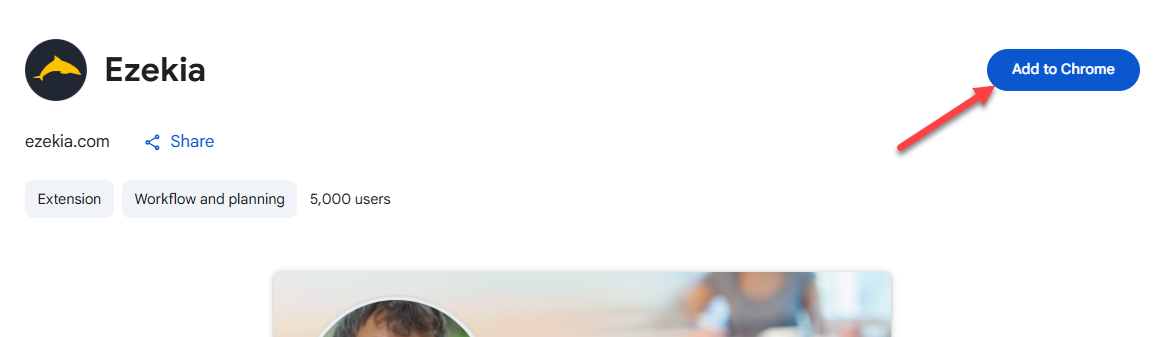
• Click 'Add to Chrome' in the top-right corner.
• When prompted, confirm by selecting Add Extension.
• Wait a few seconds for the installation to complete.
• You can see the version number if necessary in chrome://extensions/
Step 3: Restart Chrome
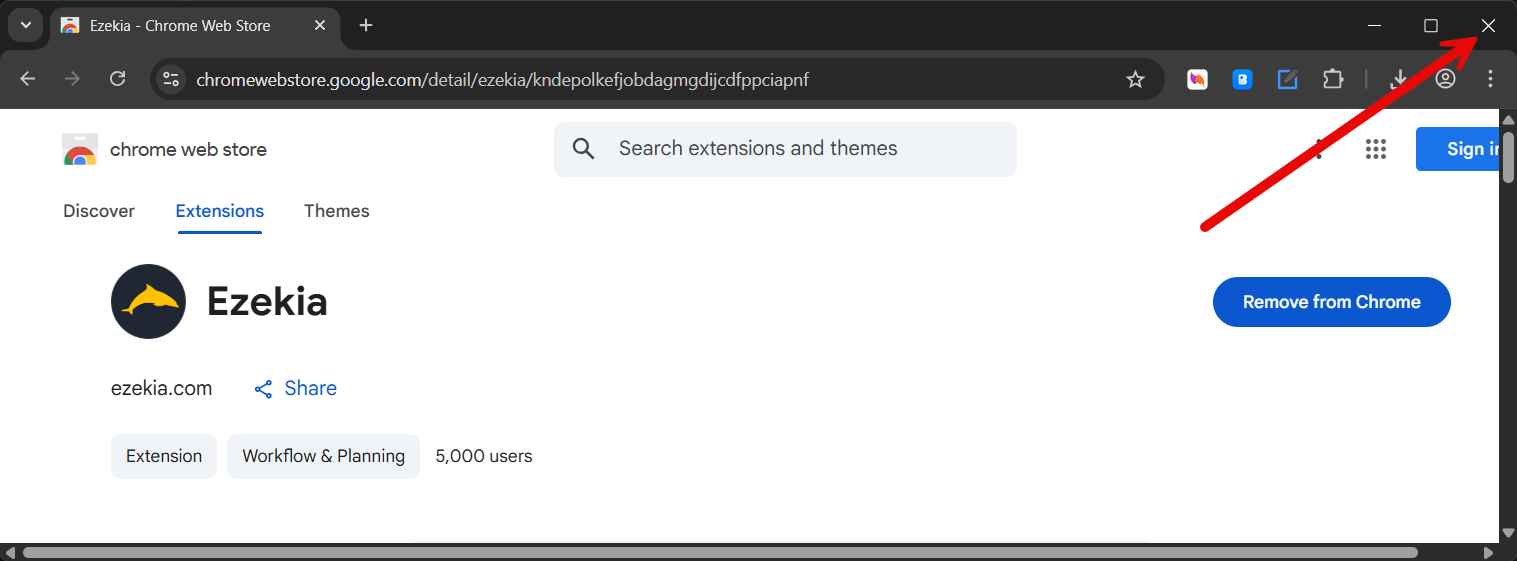
• Once installed, close Chrome completely.
• Reopen it, and your Ezekia extension should now be working again on the latest version.
If it’s still not working after restarting, please contact support@ezekia.com for further help.