If your Ezekia Chrome Extension has stopped working or is acting a little strange, it may just need a quick refresh. You can fix this by removing it and reinstalling it.
Step 1: Remove the Current Extension
- Copy and paste this URL into Chrome or Edge: https://ezekia.com/install/chrome-extension
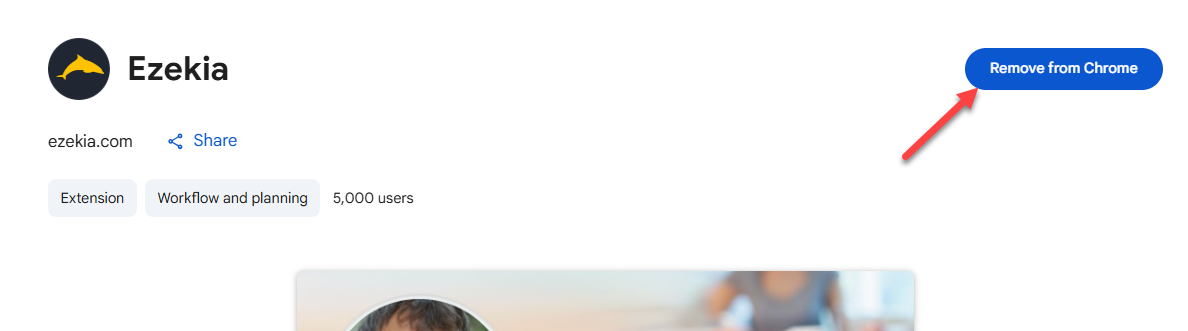
- In the page that appears, click 'Remove from Chrome'.
- If 'Add to Chrome' comes up instead, go to Step 2.
Step 2: Reinstall the Extension
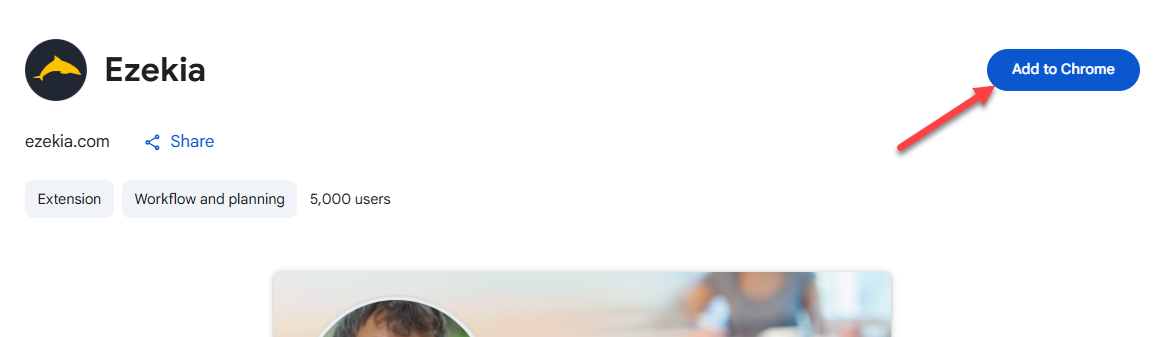
• In Chrome, go to https://ezekia.com/install/chrome-extension
• Click 'Add to Chrome' in the top-right corner.
• When prompted, confirm by selecting Add Extension.
• Wait a few seconds for the installation to complete.
• You can see the version number if necessary in chrome://extensions/
Step 3: Restart Chrome
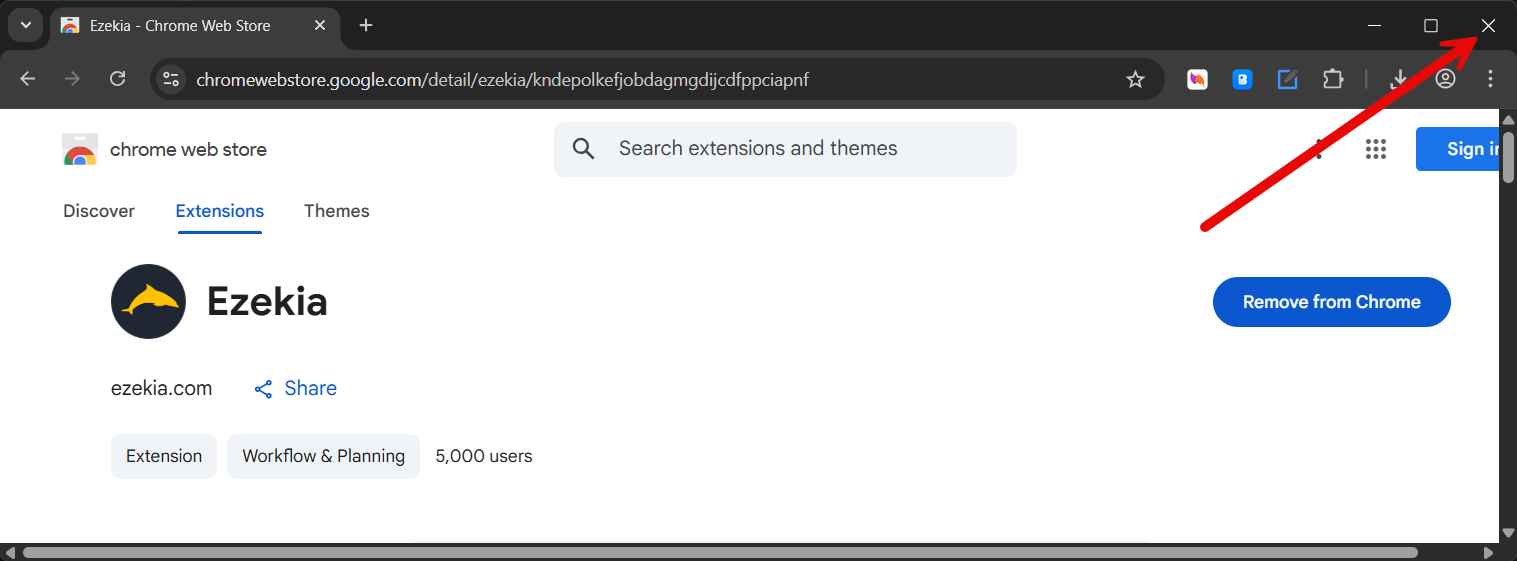
• Once installed, close Chrome completely.
• Reopen it, and your Ezekia extension should now be working again on the latest version.
If it’s still not working after restarting, please contact support@ezekia.com for further help.
Was this article helpful?
That’s Great!
Thank you for your feedback
Sorry! We couldn't be helpful
Thank you for your feedback
Feedback sent
We appreciate your effort and will try to fix the article