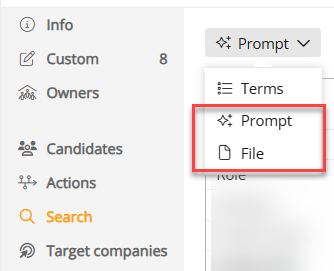
Vector Database search currently powers the Prompt and File search modes in Candidate Search.
When you do a candidate search, if you use the ‘prompt’ or ‘File’ modes, the search will now be a ‘semantic’ one, which means that the system will try to work out what you mean based on the whole prompt, and it will search the whole profile based on that intention. For example, if you said you wanted a CTO, it would know you probably meant a Chief Technology Officer, and it wouldn’t limit itself to only searching the Job role or Job title fields.
Vector database search reads the intent of a role brief, job description, or plain-language query, then ranks the most relevant candidates and displays them in the conventional way. Using the 'Smart' option, you can have the system explain why each result is a match. Smart searches have an additional ranking process applied, so they will give different results.

Smart search example match reason:

TABLE OF CONTENTS
- When to use it
- The everyday workflow
- Quick search or Smart search?
- What happens behind the scenes
- Prompt patterns that work
- How to read the results
- Practical tips
- Quick troubleshooting
When to use it
Use Prompt or File search when the requirement is nuanced: leadership context, career trajectory, sector adjacency, responsibilities, or evidence buried in profile text.
| Mode | Description |
| Prompt | Best for a short natural-language role brief or candidate archetype. |
| File | Best for a longer job description or copied brief in a .docx or .txt file. |
| Quick or Smart | Choose Quick for speed (up to 500 results). Choose Smart when ranking quality and match reasons matter more (up to 100 results). |
The everyday workflow
Start broad enough for the vector search to understand intent, then use filters to refine the candidate pool without losing the semantic ranking.
| Step | Description |
| 1. Choose Prompt or File | Open Candidate Search, select the search type menu, then choose Prompt for typed context or File for a role brief. |
| 2. Describe the target | Write the outcome, scope, sector, seniority, and must-have evidence. Plain English is usually better than a keyword list. |
| 3. Add filters when needed | Use location, industry, company, project, team, salary, or connection filters to narrow the pool. Filters apply around the semantic search. |
| 4. Choose Quick or Smart | Run Quick search for a fast first pass, or Smart search when the brief is nuanced and you want improved ranking and match summaries. |
Quick search or Smart search?
Both options use the same vector search. The difference is what Ezekia does with those matches afterwards: Quick prioritises speed and a broader filtered result set, while Smart reranks the vector results using AI and gives explanations.
| Mode | Description | Best for |
| Quick search (Fast pass) | Uses the prompt or file text to find semantically similar profiles, applies your filters, sorts by vector match strength, and returns a broader filtered result set faster. | -Best for broad discovery -Lower wait time -Good for simple or familiar briefs -500 results |
| Smart search (Deep pass) | Starts from the same vector matches, works through a more focused filtered shortlist, then reranks the results and produces stronger match reasons for review. | -Best for nuanced roles -Improved ranking -Richer AI summaries -100 targeted results |
| When to use | Guidance |
| Use Quick search when... | -You are exploring the market and want a fast first page of candidates. -The query is short, clear, or close to standard title and sector language. -You expect to iterate several times before saving or sharing the search. -You mainly need a candidate set to filter, scan, or bulk action quickly. |
| Use Smart search when... | -The brief depends on career story, leadership context, outcomes, or sector adjacency. -The first Quick search is close, but the ranking needs more judgement. -You want stronger AI match summaries to explain why candidates surfaced. -The search is client-facing, high priority, or likely to be saved and reused. |
What happens behind the scenes
You do not need to manage embeddings or query syntax. Prompt and File searches send the same kind of semantic request; the button you choose controls whether Ezekia returns the fast vector-ranked results or runs the Smart reranking pass.
| Stage | Description |
| 1. Prompt or file | Your brief becomes search text for the vector service. |
| 2. Embedding | The text is converted into a numeric representation of meaning. |
| 3. Vector DB | Ezekia compares that meaning with candidate profile embeddings. |
| 4. Filters | Permissions and selected filters keep the result set relevant and allowed. |
| 5. Ranked results | Quick returns vector-ranked results. Smart reranks those results using AI, which generates the match reasons as part of the same reranking step. |
| Path | Description |
| Quick search path | Ezekia embeds the query, compares it with candidate profile embeddings, applies permissions and filters, sorts by vector score, and returns a fast first page of results. |
| Smart search path | Ezekia starts from the same vector search, applies permissions and filters, then runs the vector reranker over the filtered results before saving the final order and match reasons. |
Prompt patterns that work
Good prompts give the system evidence to look for. Mention desired outcomes, context, exclusions, and relevant synonyms when they matter.
| Pattern | Example prompt | Best when |
| A. Role archetype | Find commercial leaders who have taken B2B SaaS businesses into the US market, owned enterprise revenue, and reported to a founder CEO. | Best when you know the kind of career story you want, but not the exact titles. |
| B. Replacement brief | Search for candidates similar to a COO for a private equity portfolio company: manufacturing footprint, operational turnaround, margin improvement, Europe scope. | Best when the search is defined by responsibilities and business situation. |
| C. Document search | Upload the job description as a .docx or .txt file and use filters for geography, connections, or project inclusion. | Best when the brief is too long to rewrite or contains important detail. |
How to read the results
Vector results are ranked by semantic fit. Smart search reranks the vector results using AI, and that same reranking step produces the match reasons for each candidate. Summaries of the AI reasoning appear when the view customisation options includes the AI search summary field.
Example result: Jordan Shaw, Chief Operating Officer at Terra Medical - match score 92. Match summary: matches the brief through healthcare operations, multi-site scale-up, and recent transformation work in a PE-backed environment. Tags: Healthcare, Private Equity, Operations, London.
| Element | What it means |
| Rank and score | Higher-ranked candidates are closer semantic matches to the prompt after filters. Smart search also reranks the shortlist. Treat score as a prioritization signal, not a final decision. |
| AI summary | The summary explains why the candidate matched. Use it to decide who to open first, then confirm details on the profile. |
| Filters remain active | Filter tags above the results show what is constraining the search. Changing a filter refreshes the result set while preserving the search intent. |
Practical tips
Small prompt changes can move the ranking meaningfully. Keep the brief concrete, then iterate from the first page of results.
| Category | Tips |
| Use these moves | -Describe the business problem: scale-up, turnaround, integration, IPO readiness, market entry. -Include title families and adjacent language: CFO, finance director, VP finance, commercial finance. -Add filters for hard constraints such as geography, connection status, projects, or recent updates. -Save strong searches with a clear title so the team can re-run or refine them later. |
| Watch for these traps | -Single-word prompts are often too vague. Add context before judging the result quality. -Too many hard filters can hide good semantic matches. Relax filters if results look thin. -AI summaries are an aid to review, not a replacement for reading the candidate profile. -File search accepts .docx and .txt; convert other formats before uploading. |
Quick troubleshooting
Most issues can be solved by adjusting prompt specificity, filters, or the selected search mode.
| Issue | Fix |
| No results | Remove one or two filters, broaden geography, or add more role context to the prompt. |
| Results feel generic | Add business situation, sector, seniority, outcomes, and must-have evidence. |
| Wrong candidate type | State what to exclude, or use Terms search for strict exact-match criteria. |
| Missing AI summary | Check the Candidate Search view card customization and enable the 'AI search summary' field. |
| Candidate notes not included in the search. | Candidate notes are not currently included in the prompt or in the file search methods. |
Was this article helpful?
That’s Great!
Thank you for your feedback
Sorry! We couldn't be helpful
Thank you for your feedback
Feedback sent
We appreciate your effort and will try to fix the article