In this Article
- What is advanced search?
- Search Concepts
- How to start a search
- Search results
- Adding people to an assignment
- Text Search Options
- Not Actively Looking profiles
What is advanced search?
Candidate search allows you to search for project candidates using a ‘fuzzy match’ approach, but you can use filters to include ‘exact match’ elements. The candidate search screen can be accessed from the People page or by using the Search tab on every project page.
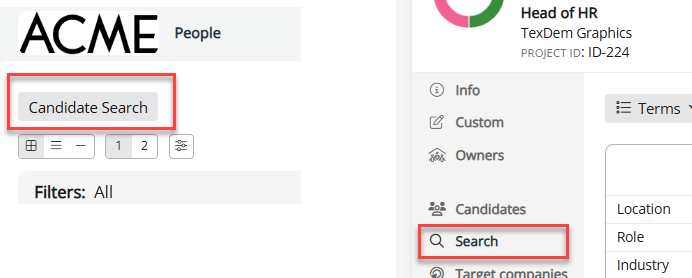
The functionality of the two is the same, except that on a project page, the system will add the candidates you select to the project you’re on, rather than having to pick the project you want from a list.
A video demonstrating the search functionality can be found here.
Search Concepts
When you open the candidate search screen, you’ll see two panes; the one on the right is to perform a ‘fuzzy’ search to find people with similar attributes. The one on the left is for filtering candidates across a range of criteria. You need to enter at least one search term on the right to start a search, but you can make selections in both panes in any order.
When searching for people, you can limit the scope of potential results using query terms and then further filter the results once they are returned. Therefore, we recommend you cast a wide net using only a few targeted query terms, then narrow the results using the filters.
The search is Google-like, which means you do not need to be exact when building your query as we will automatically find related people that are not an exact match and then rank them according to how high they score against the query. You can easily amend the query should the initial results appear too general or use the filters to narrow the results down.
How to start a search
Using query terms
Query terms can be combined to generate different results using the three Must haves, Important and Do not include query types in the search bar as follows:
- Mandatory query terms are required to appear in the profiles, meaning candidates who do not meet all specifications in this category will not be shown. This works like an AND logic function. However, the search engine will still return related people, such as those working in similar industries, but will not find people who work in different industries. Related people will be ranked lower than exact matches.
- Important prerequisites are not requirements but priorities, meaning people who don't match the query term, or related categories, will still be included in the results (unlike Mandatory) but ranked lower than those who have the exact or related category. This works like an OR logic function.
- Do not include will hide any candidates that meet one or more of these specifications. This works similarly to a NOT logic function.
You can enter the search terms directly in the Mandatory/Import/Do Not Include boxes as necessary, or you can enter them and drag them to where they are needed.
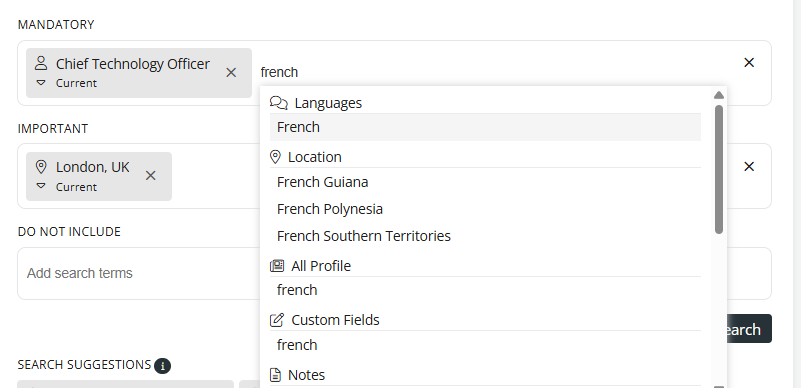
For example. When 'French' is selected from the dropdown below, this search will return anyone who is a CTO or in a related role, that has listed French as a language. All such people will be returned by this search, but anyone living in London will appear near the top of the list, whilst anyone further away or not near London will be further down the list.
Query term tense
You can specify that I want people currently in that attribute, or people who have had that attribute in the past, who aspire to it, or any of these, using this dropdown option when it appears:
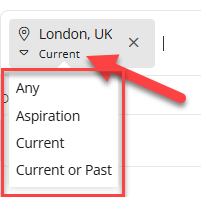
Once you are happy with the query terms, click on the Search button to generate the results.

Search results
Results scores
Each result shows a score, indicating how close the person matched your query terms and types. The score is shown as a percentage. A 100% match means they fit your criteria perfectly. Results are ordered from highest to lowest score.
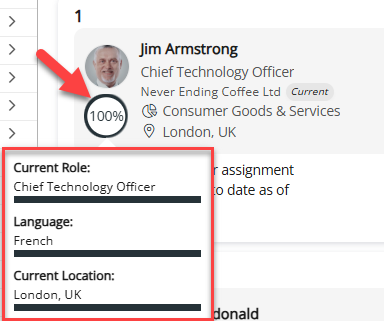
Clicking on the score will give you more detailed information; a partially filled line indicates that the person doesn't match that criterion perfectly but has related experience.
Filtering results
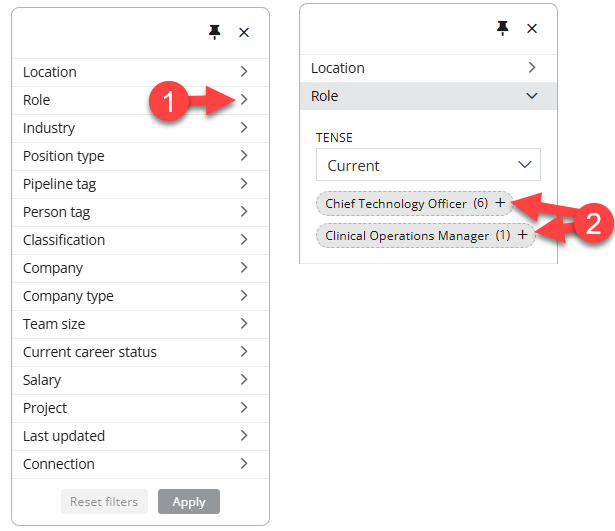
You can filter the results by clicking the filter section on the left of the page. You need to enter at least one search term on the right to start a search, but you can make selections in both search and filter panes in any order.
Filters work differently from search terms as they are "strict", meaning people who do not exactly match the filter criteria will be removed from the results. You can select multiple filter options. Click 'Apply' at the bottom to view the results.
Saving a search
Searches can be saved, including the filter settings, for future use by clicking "Save search" (1). You can retrieve the saved search using (2). A list of recent searches can be found in (3).

Adding people to an assignment
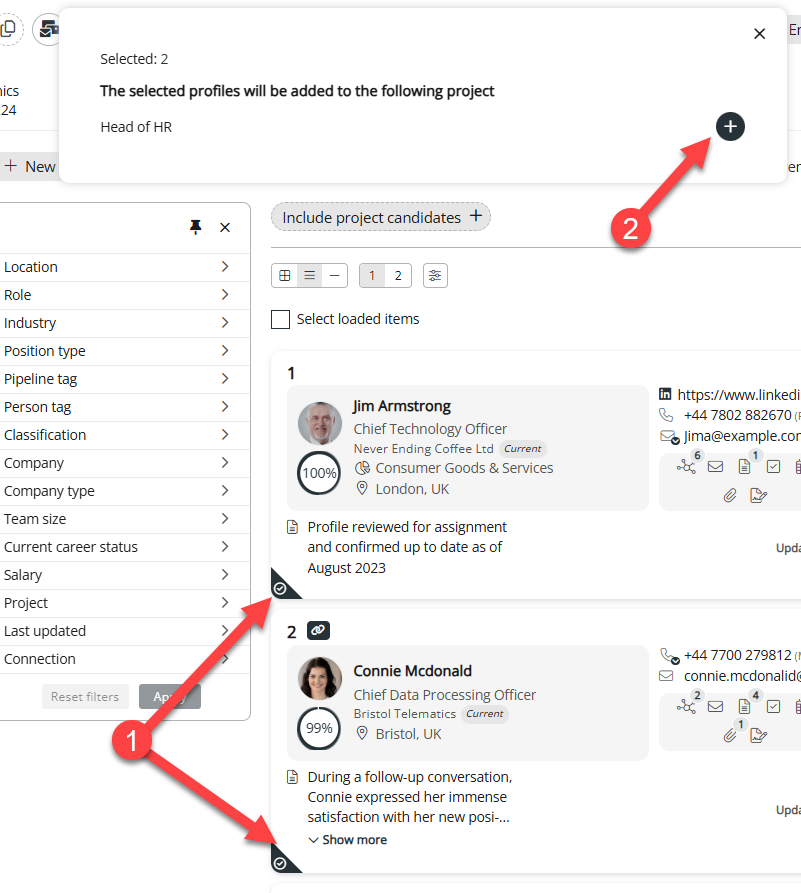
You can add a person to an assignment by clicking the tick on their profile (1). When you are ready, click the + icon (2) to add them to the current project. If you opened the search panel from the people page, rather than a project, you will need to enter the name of the project they should be saved on.
Text Search Options
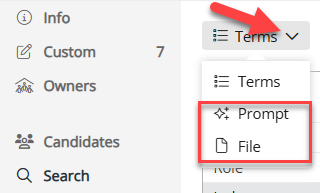
Prompt and File options provide a powerful means of searching for candidates using natural language, and includes the ability to search Word and Text files attached to candidate profiles. The search reads the intent of a role brief, job description, or plain-English query, then ranks the most relevant candidates and displays them in the conventional way. Using the 'Smart' option', you can have the system explain why each result is a match.
For more information about this powerful feature, click here: Vector Database Search
Prompt
There Prompt option just starts a new search on the screen we were on, but the Prompt option allows you to perform a text-based search. You can go into as much detail as you want.
File
The file option works in a similar way to Prompt, but it allows you to import a Word or Text file. This means that you could use a job description document to search for suitable candidates.
You can still use the filter panel on the left to filter the results for either Prompt or File options.
Not Actively Looking profiles
What is Not Actively Looking?
Not Actively Looking (NAL) is a sister brand of Ezekia and a platform for senior executives to self-manage their data, thereby removing much of the data privacy burden, such as GDPR and CCPA, from the search firm. Search firms can deflect unsolicited write-ins to NAL, where the candidate can register, manage their own data, and share this data with selected and trusted search firms. Firms can elect to exclude NAL as an option entirely, but otherwise, by default, these profiles can appear in search results.
NAL profiles can be connected to your firm, in which case they will appear like this, and can be added like any other profile:
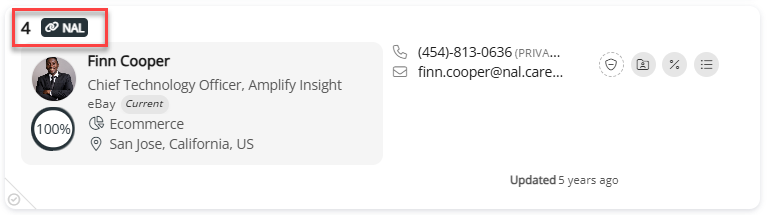
Or Unconnected, in which case they will appear as anonymous profiles like this. If you add an unconnected profile to a project, the candidate will be emailed, prompting them to connect with your firm. You cannot use or update an unconnected profile until the candidate has accepted the invitation to connect with your firm.

Was this article helpful?
That’s Great!
Thank you for your feedback
Sorry! We couldn't be helpful
Thank you for your feedback
Feedback sent
We appreciate your effort and will try to fix the article