You can create templates of your preferred Client Portal setup that can be saved both for firm-wide use or for individual use. Templates can then be used the next time you create a client portal. This saves you from manually recreating a similar portal setup every time you make a new client portal. Portals based on templates can still be adjusted manually. You can have multiple templates for use in different situations.
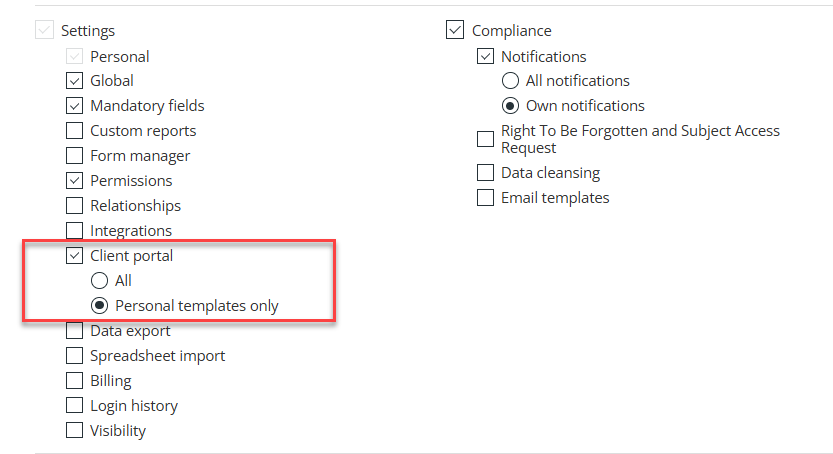
Administrators can authorise user access to either create just personal templates or firm wide ones as well, using this setting on a permission group.
Template Creation
Authorised users will have a Settings, Client portal page where they can set up some basic portal administration, including the invitation email text. The Template creation section is a little further down the page.
Home Page
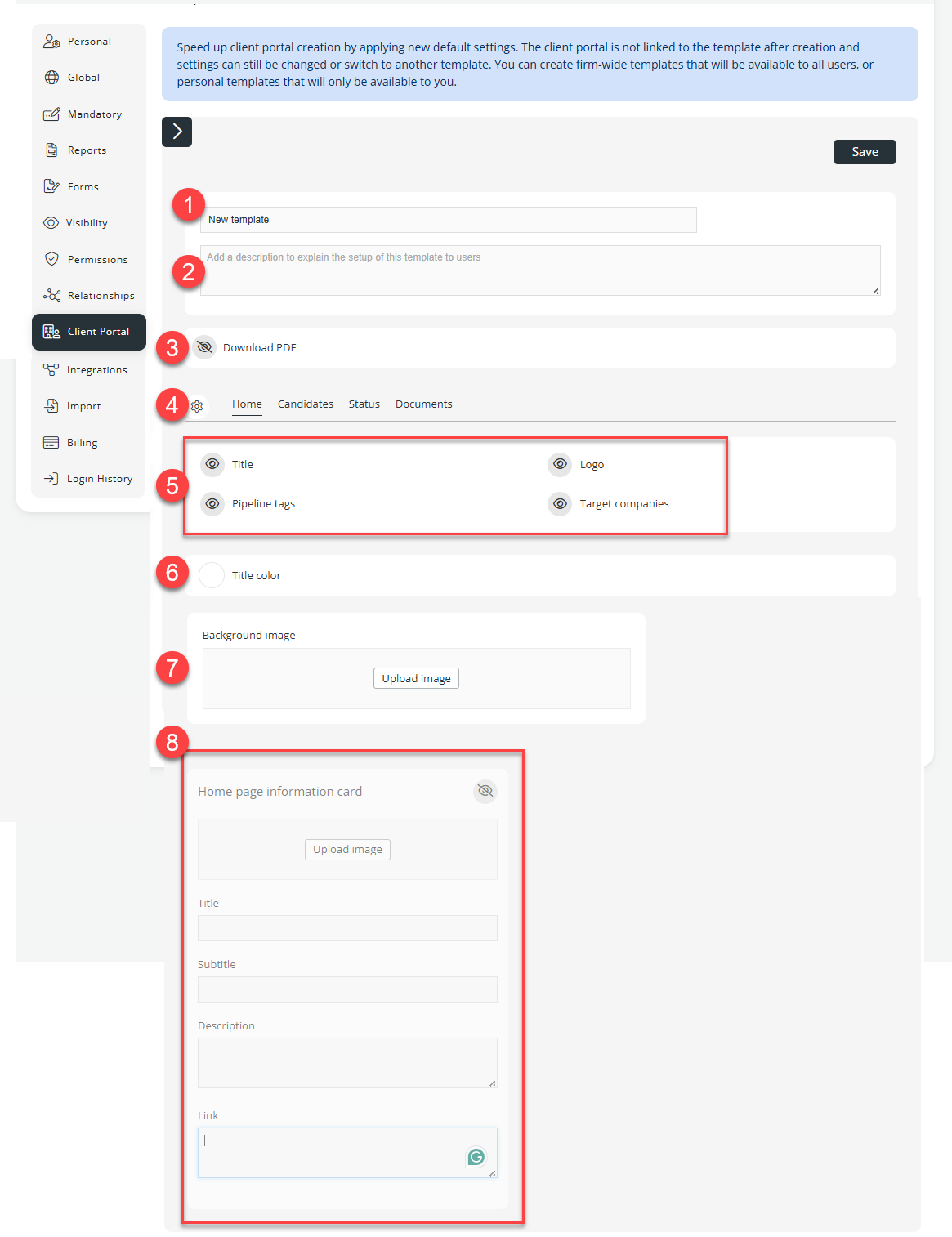
- Enter you preferred name. You can have multiple templates available, so use a descriptive name.
- Enter a Description. You must enter a description.
- PDF Download button visibility (default is hidden)
- Page tab visibility. You can hide some tabs, change the order of tabs and select a different landing page.
- Home page: Panel visibility - hide any of these panels. The default is that they are all visible.
- Home page: Title colour. The default is white, but you can select any other colour so that is shows up well against your selected background picture.
- Home page: Background image selection - you can change them image from the default city-scape block scene.
- Home page: Add details to the home page information card. As most of these will vary for each portal, you would normally leave them blank. The link might be the exception so you can enter this if it will always be the same.
Check the other tabs before saving the template.
Candidates Tab
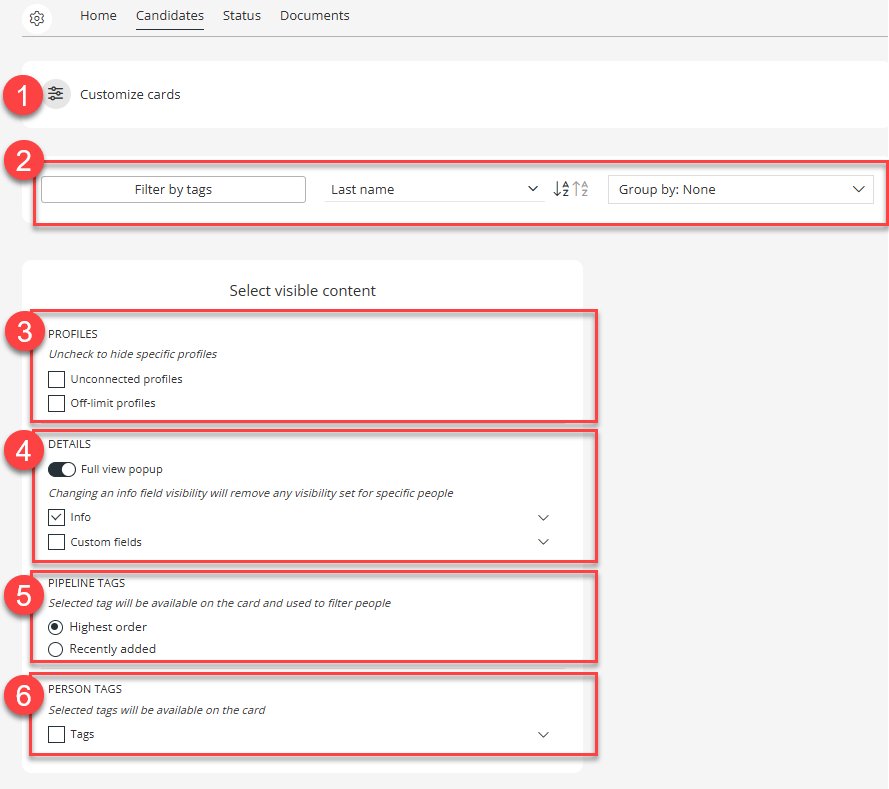
- Candidate tab: Custom Card setup. This allows you to dictate which fields appear on custom cards.
- Candidate tab: Filter by pipeline tags, set the sort order and select any grouping. If you group by pipeline tags, you will have the option to set the order of tag display to be by priority or by the latest entered, similar to the assignment grouping setup.
- Candidate tab: Off limit and uncoonected profiles can be hidden (the default) or displayed.
- Candidate tab: Field display - open the info or custom field sections and untick the items you wish to hide. Info items are all displayed by default, and custom fields are all hidden by default.
- Candidate tab: Pipeline tag display needs to be consistent with grouped tags if you are using them (item 2), and the setup on the main assignment page.
- Candidate tab: Person tags can be selectively displayed or hidden.
Check the other tabs before saving the template.
Status Tab
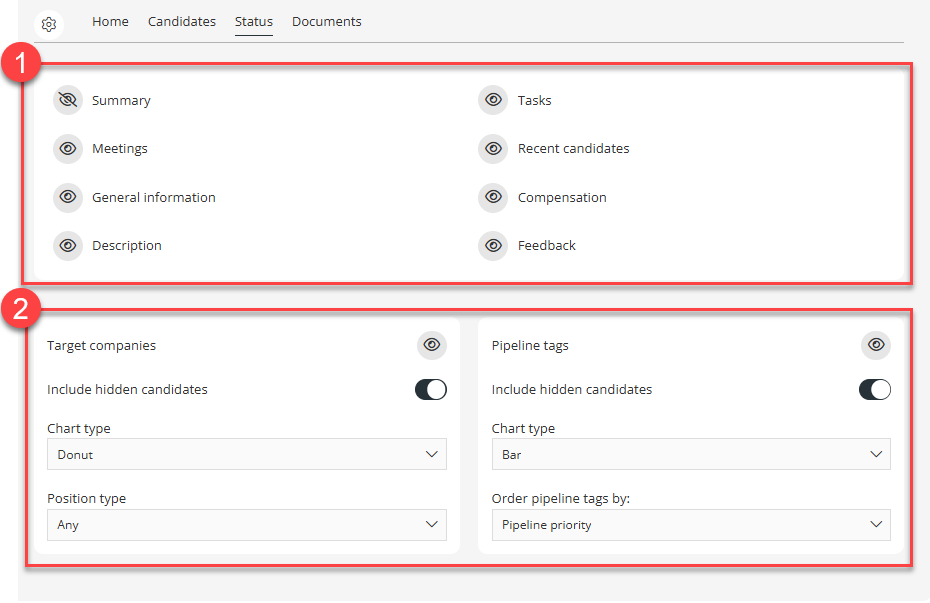
- Status tab: Hide or display the required sections in the tab.
- Status tab: Hide or display the target companies and pipeline tag graphs. These sections also allow you to adjust the graph settings.
Check the other tabs before saving the template.
Status Tab

- Status tab: Hide or display the client feedback icon.
Saving a template
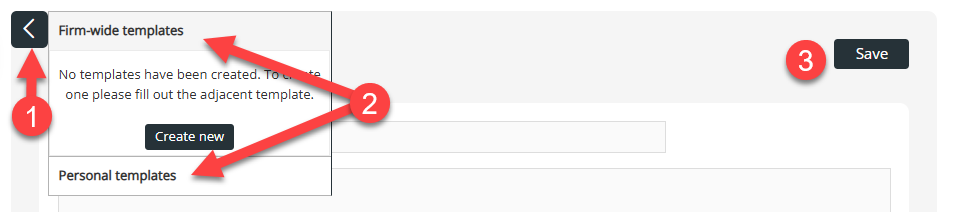
- If you save a template, it will be saved as a personal template that only you can see or use. Alternatively, click the icon to show the options of firm-wide and personal tempaltes. Note that 'Create New' will reset your template to a blank template, so only use this if that is indended. You can save the template as personal, then amend it in the personal section to Firm-wide.
- Select Firm-wide or Personal. Opening these sections will display any previously saved tempaltes. Firm-wide means that all users will be able to see and use it. There is an option in the Personal templates section to convert a personal template to a firm-wide one. You can update existing templates by clicking them in these sections to load them.
- Save the template.
Using a template
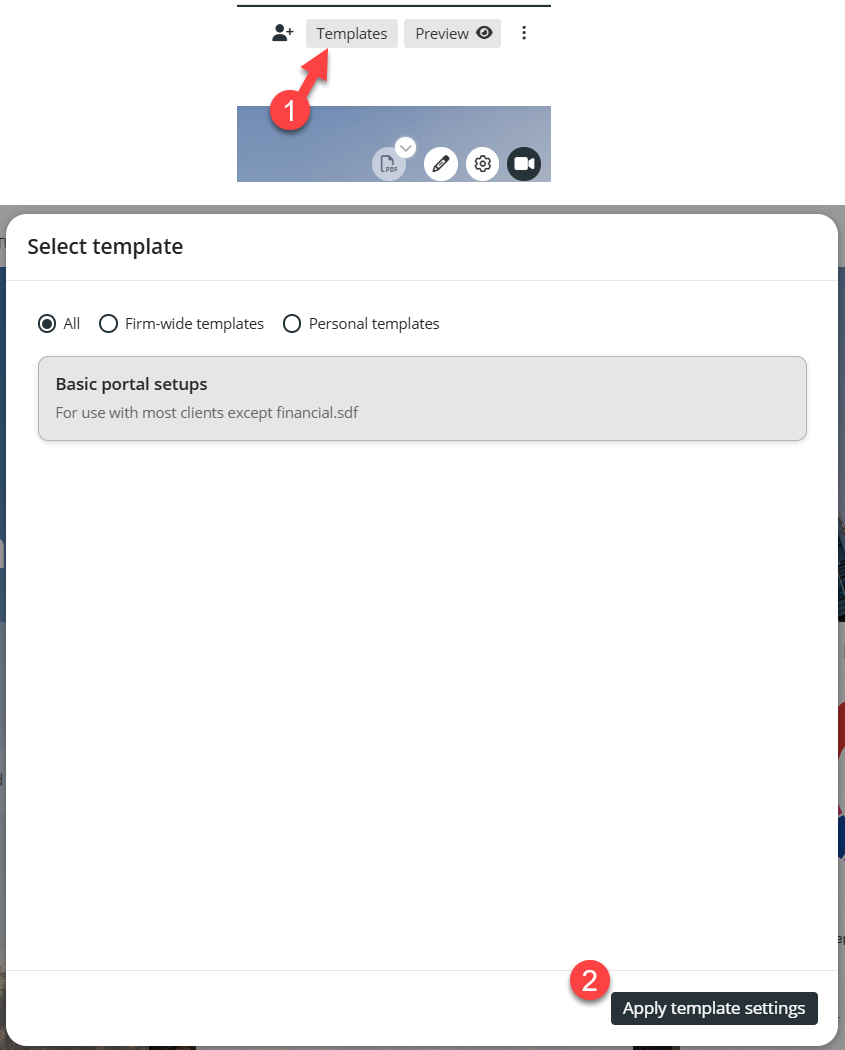
In a portal, click the Templates button (1) and select one of the templates from the available list. Applying the template (2) will overwrite the existing portal setup with details from the template.
- You can apply a new template to a portal that was already based on a template.
- After applying a template, you can amend any setup detail in the portal manually. This will change the portal you are on, but will not affect the template.
- Subsequent changes to the template will not affect any portals where it was previously used. For this to happen, you would need to reapply the adjusted template.
Was this article helpful?
That’s Great!
Thank you for your feedback
Sorry! We couldn't be helpful
Thank you for your feedback
Feedback sent
We appreciate your effort and will try to fix the article