Custom Word reports allow you to create an MS Word template of a report, either for a single candidate (such as a standard format CV) or for a list of candidates on a project (such as a project candidate report). You can use almost any formatting you want, including background pictures, watermarks, tables, etc. Any lists of data, such as a list of candidates or a list of positions, are defined in a single table row, which is then repeated for every item in the list.
Templates are made up of your own Word report layout, with Ezekia fields inserted. When the report is run, it retains your formatting but replaces the fields with values from Ezekia, such as Assignment Name, Person Name, Job Title, etc.
If you are authorised, you can access the Word report template via the 3-line icon, then Settings, Reports, Word. There are two tabs - Candidate and Project. The functionality and usage of these pages are very similar, but the fields available in each are different, so it is important that you use the page relating to the report you want to create.
There are some example templates to try at the bottom of this page (which are visible if the page is opened full screen). It is usually easiest to create a template based on one that already exists. You are welcome to download and rebrand the reports, adjusting them to your own requirements.
Candidate Reports
You can run a candidate report from a person page opened in any location, but if there are details on the report relating to a project, you must open the candidate page from the project candidate list. The instructions to run a candidate report are here.
Project Reports
You can run a project report on the Project Candidate page by selecting the people records you want to appear on it, and pressing ‘Download report’ from the row of buttons that appears at the top of the page. Full instructions can be found here.
Creating a report
It is easiest to use one of the example documents and adjust it to include your branding, required fields, and the layout you want. The examples below are for a project report, but a candidate report is very similar, apart from not needing a table to contain the candidate record.
Navigate to the Word reports projects page via the 3-line icon and the settings option.
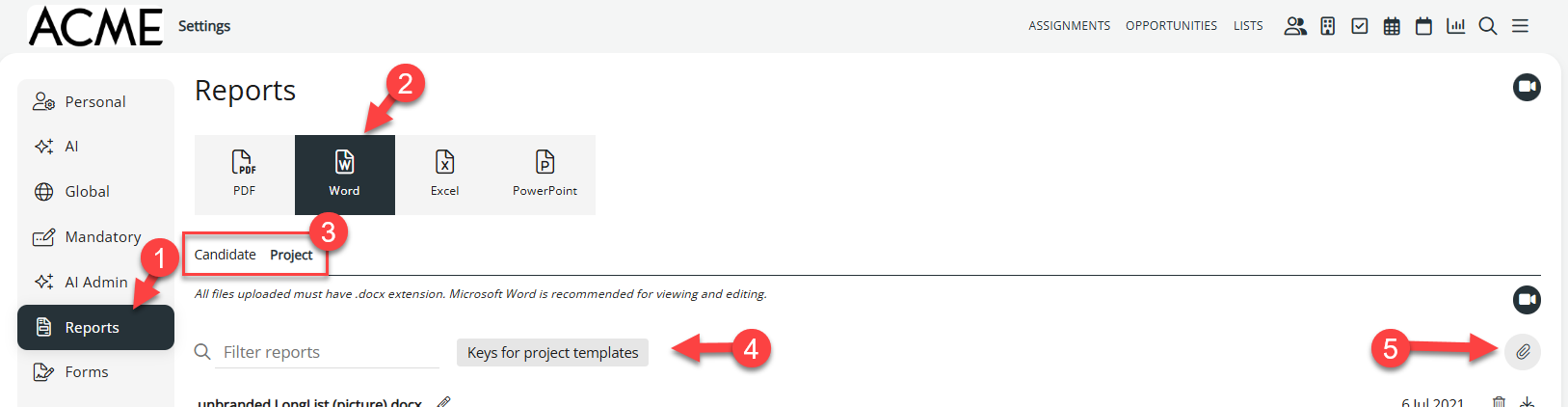
Button 4 will give you the list of available key fields that can be inserted into your Word template.
Icon 5 allows you to upload an example document or your own templates
When you open the Keys page, at the top, there is a section that includes detailed instructions on more in-depth subjects, such as date formatting, record filtering, and single-record selection. Next is the section containing field names about the project you are on. This will include any custom project fields you have. The candidate field names start about halfway down, with candidate custom fields near the bottom of the page.
Adding fields to your template.
Click on a field name in the key list to copy it, then paste it into your Word template where you want it. The format (size, font, etc) you apply to the field will be how it is shown when the report is run. The example fields shown below in red relate to the topic being described.
Multivalued fields
Some fields can have more than one value, such as candidate details, positions, education, phone numbers, emails, etc, must be added to their own table. In the list of field names in Ezekia, these are indicated with an asterisk.
In the Project reports, candidates are multivalued, so you would define a single table row with the required layout for a candidate, and embed multivalued fields (like positions) as tables within that row.
If you only want to display the first value (as might be the case with email addresses, for example), you can typically append #*#1 before the closing bracket for project reports, or #1 for people reports
For example:
${candidates.fullName} | ${candidates.emails.address#*#1} |
If you prefer to see all the available records, you need to embed a table within the person record. In this example, the cell padding has been exaggerated and all borders left visible for clarity. Each email address on the record would be displayed in a separate row.
${candidates.fullName} |
|
Project report order
Reports are created in the same order in which the profiles appeared on the page when the report was run. You can use any sort order available in the project, including the grouping options. Grouping options MUST be used if you want to either group or split your reports by pipeline status using either of the following tags:
${candidates.pipelineTag.heading} This defines that the pipeline tag will be used as a heading for the following group of candidates.
${candidates.pipelineTag.heading.split} This defines that the report should start a new page, and that pipeline tag will be used as a heading for the following group of candidates. The attached ‘unbranded by Pipeline Status Headings (with split)’ document has an example of how this is done.
Clickable LinkedIn logo
You can use a LinkedIn logo as a clickable LinkedIn link. A suitable image has been attached to this FAQ at the bottom of the page. Place it on the report and resize it as necessary. You must then open the Alt Text panel for that image, and enter the following field name there:
${candidates.linkedin.link}
Candidate Photos & Client Logo
You will need a placeholder image, which should be square – this will be used if there is no candidate photo (or client logo) on the record for that person. If there is an image, it will replace the placeholder image, but retain the same dimensions.
Put the placeholder image in the document and resize it as appropriate. You must then open the Alt Text panel for that image, and enter the appropriate field name there:
${candidates.image}
${client.logo}
Date Formatting
Dates (marked in the key list with a ^ symbol) can have alternate formatting applied by adding formatting values to the end of the field. For example, to format a candidate's position start date to read as 03-Dec-2026, the key would be:
${candidates.positions.start.d-M-Y}
To just show the same date as just a 4-digit year, you would use:
${candidates.positions.start.Y}
These are the available formatting values
d - The day of the month (from 01 to 31).
m - A numeric representation of a month (from 01 to 12).
M - A short textual representation of a month (three letters).
n - A numeric representation of a month, without leading zeros (1 to 12).
F - A full textual representation of a month (January through December).
y - A two digit representation of a year.
Y - A four digit representation of a year.
You can use a period, a forward slash or a dash as date separator values.
Table Filtering
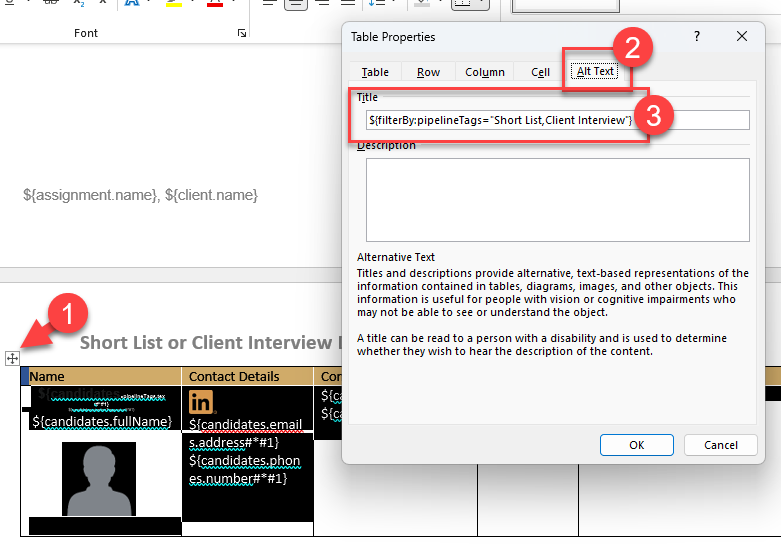
You can have differently formatted candidate tables based on a filter value for either pipeline tags, person tags, primary position type, role classification, or position type.
In practice, this means, for example, that you can have a summary table of all candidate names, a separate table for all candidates at interview stages (which might include lots of details about each candidate), and another table for rejected candidates (which might include minimal details). To add a filter, enter the details in the Alt Text field of the table it applies to.
Full details are in the Keys page, but here is an example showing the setup in Word for a table that will only feature profiles with a pipeline tag of ‘Short List’ or Client Interview’.
Company Grouping
You can group position history by company (so that it shows promotions in the same company):
For example:
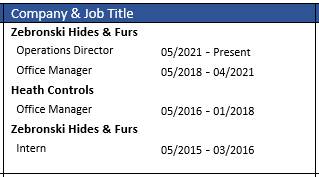
The table to display positions like this needs to be defined with a header row containing the company field, and the second row will have the job title, etc. Notice the slight indent before the job title - this aids readability in the completed report.
${candidates.positionsGroupedByCompany.company} |
|
${candidates.positionsGroupedByCompany.title} | ${candidates.positionsGroupedByCompany.start.m/Y} - ${candidates.positionsGroupedByCompany.end.m/Y} |
REMOVEIFEMPTY use
This allows you to hide tables that have no values inserted by the report process. When hiding tables, ensure the tags are placed above and below the table you want to hide.
Here are two examples:
${REMOVEIFEMPTY} Fluent:
${/REMOVEIFEMPTY}
| ${REMOVEIFEMPTY}${candidates.summary}${/REMOVEIFEMPTY}
|
Useful Word document settings
- Always turn off ‘Resize to fit contents’ in table properties, as this setting makes results unpredictable.
- If you want invisible borders in the completed document, you should ‘View Gridlines’ in the Table Layout menu. This makes it easier to see table borders when designing the template.
- If you want to create a candidate-per-page report, you can do so by specifying the height of the row so that it fits within one page. You can further adjust Window/Orphan options in the paragraph menu if necessary.
Common Problems
| Error messages when uploading a template. | If the report fails to upload, you will be given an indication of what is wrong (which will typically be an incorrectly spelt field name, a missing bracket, etc). If there are lots of mistakes, you might be importing on the wrong tab - for example, you might be trying to import a candidate report on the projects tab. Correct the problems and try the upload again. | |
People records keep repeating themselves. | This issue arises from having a repeating value field that is not appended #*#1 or is not in its own embedded table. See the Multivalued Fields section above for more information on resolving this. | |
Field names don’t fit in the space available for them. | Only the first character of the field name defines the font, colour and point size of the value that will be inserted there. This means that any other characters after the first one can be reduced in size so that the field can fit in the available space. This is helpful when creating a template as it gives a better idea of the layout of the page, without affecting the final results. For example:
| |
| I have multiple versions of the same report uploaded | You will probably need to make a few adjustments to your report. It is best to delete the old version of the report before uploading the new version, as otherwise, they can get confused. |

Was this article helpful?
That’s Great!
Thank you for your feedback
Sorry! We couldn't be helpful
Thank you for your feedback
Feedback sent
We appreciate your effort and will try to fix the article