This article explains how to connect Claude (Anthropic) to Ezekia using Model Context Protocol (MCP) and make the Ezekia connector available for use within Claude. Once connected, users can securely search, create, and update data in Ezekia using natural language directly from within Claude.
Important: Claude vs Ezekia’s Built-in AI
Ezekia supports two completely separate AI integrations:
Ezekia Built-in AI / Sidekick
- Uses your firm's own OpenAI or Anthropic (Claude) API key
- Requires credit with that provider
- Configured inside Ezekia (Settings, AI Admin)
- Powers features such as Sidekick, AI Automations and summarisation
Using Claude through MCP is separate from choosing Claude as your built-in AI provider in Ezekia. A Claude.ai plan doesn't include an Anthropic API key, so if you want Sidekick to run on Claude you'll need an Anthropic API account as well.
Claude via MCP
- Uses Claude as an external AI tool
- Does not use Ezekia API tokens
- Is configured inside Claude (not Ezekia)
Connecting Claude via MCP is independent of enabling Sidekick and other AI features.
Important: Availability & Support
- Claude MCP connectors are available via the Claude web app (claude.ai)
- This feature may depend on your Claude plan and region
- While the MCP endpoint is compatible, we have not fully validated behaviour, permissions, or long-term stability within Claude. For a fully supported experience, we recommend using ChatGPT MCP.
Who This Guide Is For
This setup is intended for:
- Claude users with access to Connectors / Custom Connectors (admins / owners)
- Users who want a simple, UI-based integration (no coding required)
No developer or CLI setup is required.
How Authentication Works
Claude uses an OAuth authorisation flow when connecting to MCP servers.
When users first connect:
- They are prompted to log in to Ezekia (if not already signed in)
- They approve access via a secure authorisation window
- Claude then interacts with Ezekia on their behalf
No API tokens are required or managed by the user.
Prerequisites
To use Claude with Ezekia MCP, you will need:
- Access to Claude (claude.ai)
- Access to Connectors / Custom Connectors
- An active Ezekia user account
Add the Ezekia MCP Connector in Claude
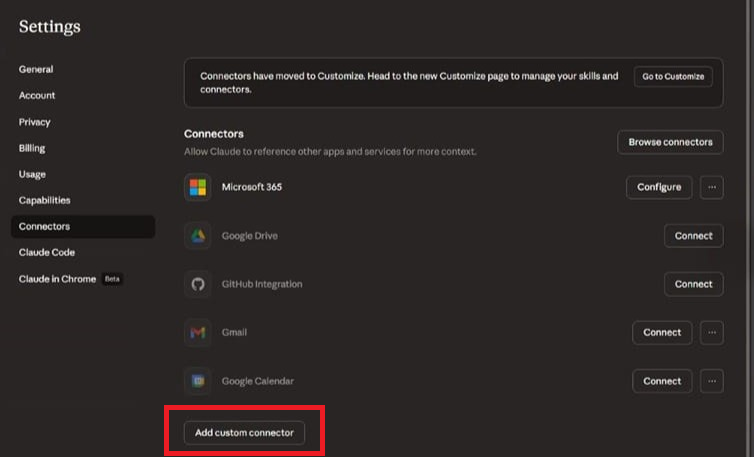
- Open Claude, go to your profile in the bottom left: Settings → Connectors
- Click Add custom connector (also called customisation):
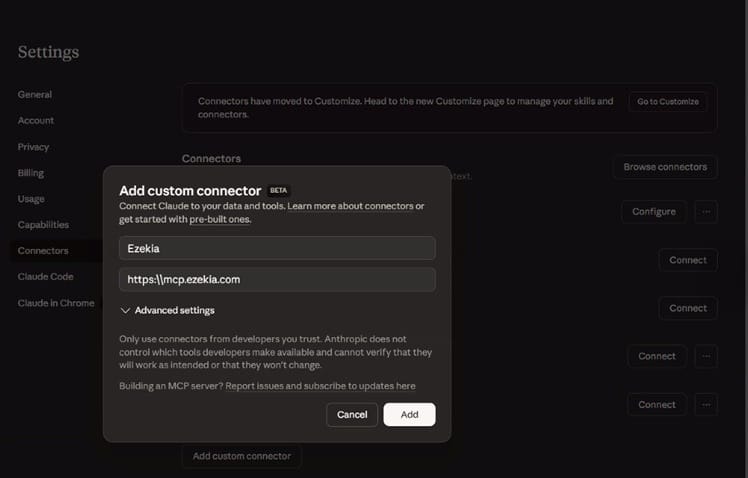
- Complete the fields:
- Name: Ezekia or Ezekia MCP
- Connector URL: https://mcp.ezekia.com
- (Optional) Leave Advanced settings blank as OAuth Client ID and Secret are not required
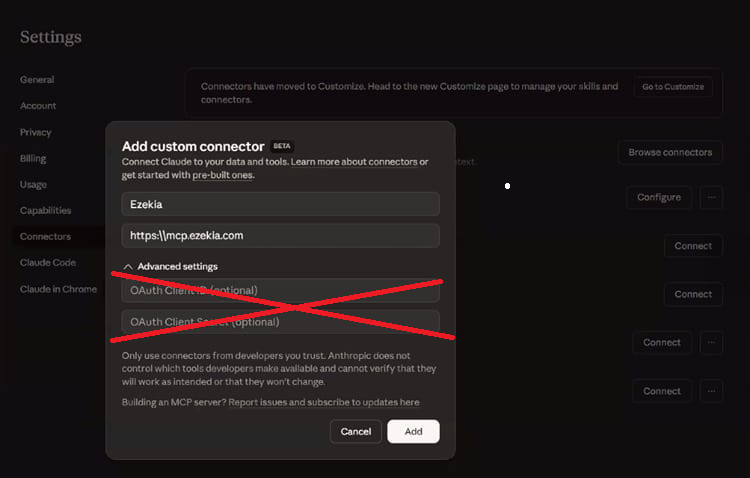
- Click Add
Authenticate with Ezekia
After adding the connector:
- Click Connect next to the Ezekia connector
- A login/authorisation window will appear
- Log in to Ezekia (if required)
- Click Authorise
Once approved, Claude will be connected to your Ezekia account.
Using Ezekia in Claude
After setup, users can:
- Open a Claude chat
- Use natural language to interact with Ezekia
Examples:
- “Search for senior product managers in Berlin”
- “Create a new assignment for this company”
- “Add a follow-up task for next week”
- “Update the project status to completed”
- “Add a note summarising today’s call”
All actions are executed in Ezekia and respect the user’s permissions.
Security & Permissions
- All actions respect Ezekia’s permission model
- No API tokens are exposed or required
- Access is granted via secure OAuth authentication
- Users can revoke access at any time via Claude or Ezekia
Instructions & Guardrails
The Ezekia connector has no instructions or guardrails field of its own, so anything you want applied consistently needs to be set in your AI tool's own instructions, or included in the prompt. For what to include, and the guardrails we recommend, see Instructions and Guardrails in Connect External AI Tools to the Ezekia AI Server (MCP): https://ezekia.freshdesk.com/support/solutions/articles/101000567211
Troubleshooting
Connector not working
- Ensure the URL is correct: https://mcp.ezekia.com
- Try removing and re-adding the connector
Authentication issues
- Ensure you are logged into Ezekia
- Retry the authorisation step
Feature not visible
- Check your Claude plan supports connectors
- Availability may vary by account type
Getting Help
Ezekia Support can help with:
- MCP availability and setup
- Verifying Claude connectivity to Ezekia
We’re unable to provide support for:
- Claude configuration or account setup
- Prompt design or workflow building
For Ezekia-specific questions, contact support@ezekia.com
Was this article helpful?
That’s Great!
Thank you for your feedback
Sorry! We couldn't be helpful
Thank you for your feedback
Feedback sent
We appreciate your effort and will try to fix the article