
If you already have an email signature designed in Microsoft Word, for example, with three sections such as your logo, a vertical line, and your contact details, you can recreate it in Ezekia by following these steps.
Example of email signature:
Jane Doe
|
| Jane Doe | CSM Ezekia O +44 (123) 456-6789 | M +44 (7707) 123 3456 |


Step 1: Open your Email Signature Settings
- Click the three lines (☰) in the top-right corner of Ezekia.
- Select Settings.
- Scroll down to the Messaging section.
- Under Signature, click Edit.
Step 2: Prepare your Signature in Word
- Open your existing signature in Microsoft Word.
- In your Word document, select your entire signature.
- Copy your entire signature (including all text and layout).
Step 3: Paste and Adjust the Table in Ezekia
- Paste the signature into the Ezekia signature editor.
- Please note that images will not transfer automatically when pasting from Word.
You’ll need to reinsert each image manually in the next step.
Step 4: Insert Your Images
- Return to your Word document and copy your first image (for example, your company logo).
- Paste the image into the correct section of your Ezekia signature.
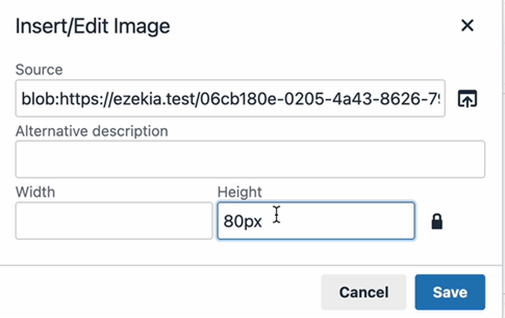
- Click the image, then select Insert/Edit Image.
- Adjust the Height field according to your image size.
- For example, 80px, but the ideal size may vary depending on the logo or spacing in your design.
- Click Save.
- Repeat for any other image, using the same 80px height.
Step 5: Add the Vertical Line
- In Word, copy the vertical line (if included in your signature)
- Paste it into the middle column of the table in Ezekia.
- Adjust spacing as needed so that the layout matches your original design.
Step 6: Test Your Signature
- Send a test email from Ezekia to your Outlook account.
- Check that your signature appears correctly formatted and aligned.
- If needed, adjust the spacing or image height slightly in Ezekia’s editor.