
Ezekia screens (including the Chrome extension) can sometimes behave strangely, or fail to load. This might be caused by a corruption within your browser, in which case it can be resolved by clearing your browser cache.
On most browsers, it is Shift+Ctrl+Delete to get to the function that does this (MAC browsers are Command+Shift+Delete). The next panel varies depending on browser, but you only need to clear the items shown below, for ‘All Time’ (1).
Make the options in the panel look like this in your browser (2) and then click the icon (3) to clear the data:
| Chrome | Edge |
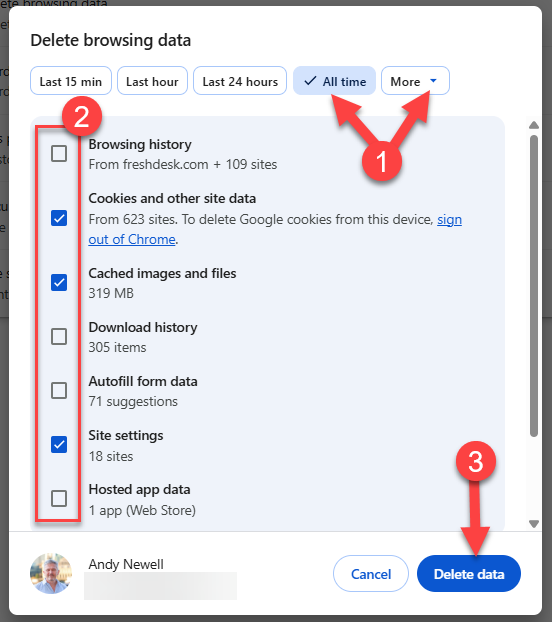 | 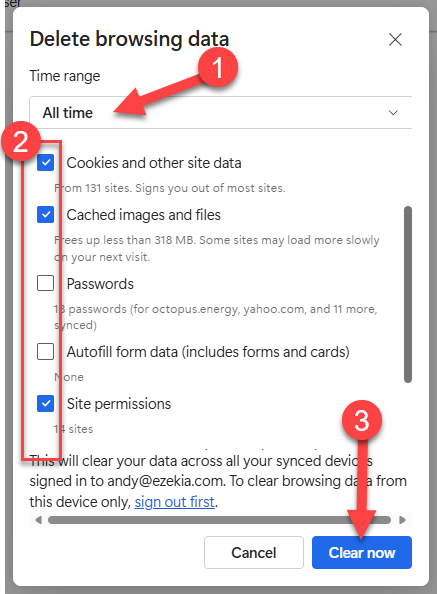 |
This shouldn’t take long to complete. When it is done, close the browser right down and restart your computer. Contact support@ezekia.com if you still have the same issue after completing this procedure.