
Ezekia MCP (Model Context Protocol) allows you to securely connect external AI tools, such as ChatGPT, OpenAI Agent Builder, Gemini, and Microsoft Copilot (only via Copilot Studio) to your Ezekia account. Once connected, you can query, create, and update data in Ezekia using natural language, and build automated AI-driven workflows.
⚠️ Beta feature Ezekia MCP is currently in beta. Functionality and supported actions may evolve.
What is Ezekia MCP?
The Ezekia MCP enables AI tools to understand and interact with your Ezekia data. Instead of navigating the platform manually, you can ask an AI to perform actions in plain English, such as searching records, updating data, creating tasks, or adding notes.
The AI translates your request into secure actions performed directly in Ezekia.
What You Can Do with Ezekia MCP
Using natural language, supported AI tools can perform actions such as:
- Searching and fetching people, companies, projects, and tasks
- Creating and updating people, companies, and projects
- Managing candidates and contacts within projects
- Adding, updating, and deleting tasks
- Creating, updating, and deleting notes
A complete, detailed list of all supported actions is available at the end of this article.
How to Connect Ezekia to an AI Tool
1. Generate an API Token in Ezekia
To connect Ezekia to an external AI tool, you’ll need to generate an API token.
- In Ezekia, go to Settings → API Tokens
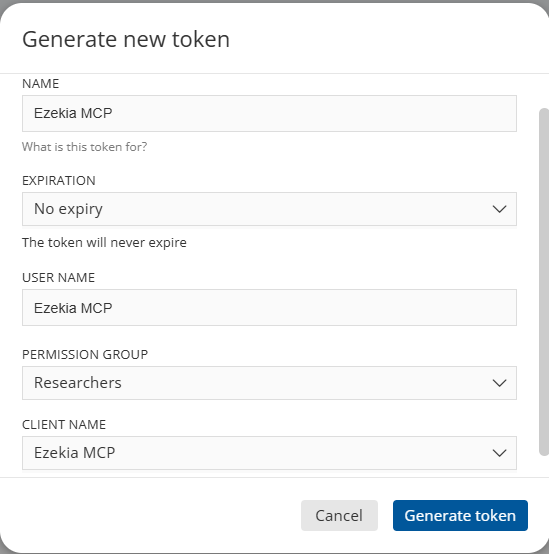
- Click Generate new token
- Complete the fields:
- Name: Any name you choose (e.g. Ezekia MCP)
- Expiration: Any expiry that fits your security policy (or No expiry)
- User name: Optional, for internal reference
- Permission group: Select the access level you want the AI to have
(for example, read-only vs full access) - Client name: Select Ezekia MCP
- Click Generate token
- Copy the API key securely (treat this the same way you would a password) - The token is only shown once and cannot be retrieved later.
The permissions assigned here control exactly what the AI can see and do in Ezekia. We recommend granting the minimum permissions required.
2. Add the MCP Connector in Your AI Tool
The exact steps vary slightly by platform, but the overall process is the same. Depending on the platform and your account type, you may need admin access or developer features enabled to create a custom connector or app.
General steps
- Open Settings / Connectors / Data sources in your AI tool
- Add a new MCP or Custom Connector/app
- Use the following MCP endpoint: https://mcp.ezekia.com
- Authenticate using your Ezekia MCP API key
- Enable the connection
For platform-specific instructions, refer to the official documentation:
- ChatGPT
https://help.openai.com/en/articles/11487775-apps-in-chatgpt#connectors-are-now-apps - OpenAI Agent Builder
https://platform.openai.com/docs/guides/tools-connectors-mcp#page-top - Google Gemini
https://support.google.com/gemini/answer/13695044 - Microsoft Copilot (Copilot Studio)
https://learn.microsoft.com/en-us/microsoft-copilot-studio/connectors/custom-connectors
Permissions & Security
- The AI can only access data allowed by your API token
- Actions are performed under your user permissions
- You control whether the AI can read data only or create and update records
- For accountability and security, we recommend one API token per user when using ChatGPT, and a shared service token only for centralised agents or automation.
Supported AI Platforms & Known Limitations
ChatGPT
- Supports MCP connector apps on Enterprise plans only
- MCP connectors are currently available to owners and admins
- If an owner creates the connector, it is available to admins
- If an admin creates a connector, it is only available to that admin
- Suitable for interactive querying and ad-hoc updates once connected
OpenAI Agent Builder
- Supports MCP for building automated or repeatable workflows
- Best suited for background processes and structured AI agents as a single service account API key is typically used
Google Gemini
- Supports MCP connectors depending on workspace and account type
- Availability may vary by region and plan
Microsoft Copilot (only via Copilot Studio)
- Supported only via Copilot Studio using custom connectors
- Native Copilot apps (Outlook, Word, Excel, Teams) do not support MCP directly
- Intended for organisations building custom internal Copilot experiences
Using Ezekia with Natural Language
Once connected, you can interact with Ezekia directly from your AI tool. For example:
- “Search for senior product managers in Berlin”
- “Create a new project and add these candidates”
- “Add a follow-up task to this company for next week”
- “Update the project status to completed”
The AI will automatically use your Ezekia data and permissions.
Common Use Cases
- Faster candidate, company, and project searches
- Automated admin tasks (notes, tasks, updates)
- AI-assisted insights and reporting
- Workflow automation using AI agents
Complete List of Supported Actions
General & Search
- Search (People, Projects, Companies)
- Fetch (People, Projects, Companies)
- Search people
- Search companies
- Search projects
- Search tasks
- Get person details
- Get company details
- Get project details
Person Actions
- Create person
- Update person details
- Add work history to person
- Link person to company (add position)
- Unlink person from company (remove position)
Company Actions
- Create company
- Update company
Project Actions
- Create project
- Update project details
- Add contact to project
- Add candidate/person to project
- Remove candidate/person from project
- Remove contact from project
- Update candidate/person status in project
Task Actions
- Add task to model (person, project, company)
- Update task on model (person, project, company)
- Delete task from model (person, project, company)
- Get task details
Note Actions
- Create note on model (person, project, company)
- Update note on model (person, project, company)
- Delete note from model (person, project, company)
Getting Help
If you need assistance setting up or using Ezekia MCP, please contact support@ezekia.com