
A small number of users occasionally receive a warning or temporary restriction from LinkedIn stating that their account may be using automated tools such as the one below: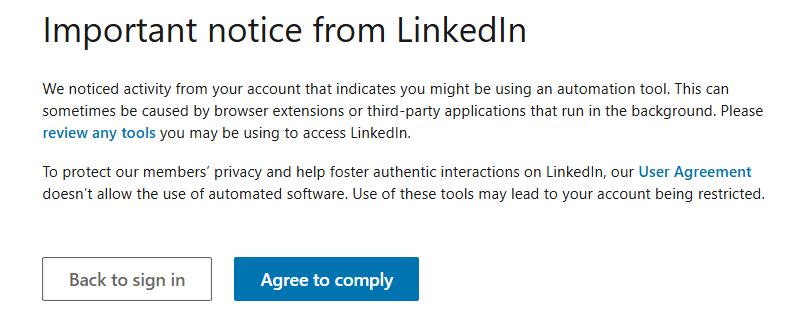
Understanding the message and how the Ezekia LinkedIn Extension fits in. This article explains:
- Why these warnings occur
- How they relate to the Ezekia LinkedIn extension
- What you should do if you receive one
- Best-practice guidelines to help prevent it
These messages can be alarming, but in almost all cases they are quickly resolved - and importantly, we were able to prove beyond doubt that this is not related to the Ezekia extension. There are thousands of users using the Chrome Extension, probably tens of thousands of times each day (so millions per year).
Does the Ezekia LinkedIn Extension Trigger These Warnings?
No, because the Ezekia LinkedIn import extension does not automate any activity. It:
- Does not interact with LinkedIn servers directly
- Does not navigate, scrape, or take actions on your behalf
- Does not “control” the browser
- Requires a manual, user-initiated click to import a profile
- Reads only the information LinkedIn already displays to you
The extension operates strictly within LinkedIn’s Terms & Conditions, and is designed specifically to avoid automated behaviour.
We have confirmed this through past investigations, including cases where:
- Users who received warnings had never installed the extension, and
- Users installed the extension but never received any warning, despite heavy daily use.
With tens of thousands of imports performed each day across our user base, warnings are extremely rare.
Why Does LinkedIn Issue These Warnings?
LinkedIn uses automated detection systems to flag behaviour that resembles automation. This system is not perfect and may trigger incorrectly. Common triggers include:
1. Too many LinkedIn tabs or windows open at once
LinkedIn interprets multiple simultaneous instances as suspicious, especially if they are loading data at the same time.
2. Rapid browsing behaviour
Clicking through many profiles quickly (particularly in Recruiter) may resemble automated scraping.
3. Multiple active sessions
Being logged in on several devices (laptop + desktop + mobile) simultaneously can trigger flags.
4. Third-party browser extensions unrelated to Ezekia
Some generic “productivity” extensions inject scripts that LinkedIn’s systems flag.
5. Recruiter system quirks
Recruiter’s interface occasionally triggers false positives when refreshing frequently or navigating through search results at speed.
What To Do If You Receive the Warning
1. Respond to LinkedIn
Push back politely and assert clearly that:
- You are not using automated tools
- Your firm uses only compliant browser extensions
- You request the block be lifted
Example message: “I am not using any automated tools. Please review the restriction and restore access.” LinkedIn typically resolves this within 24-48 hours.
2. Reduce open LinkedIn sessions
Close unused tabs and log out of any secondary devices.
3. Restart your browser
And try clearing your cookies. This resets session flags that may have contributed.
4. Wait for restoration
Temporary restrictions usually lift automatically.
Best-Practice Recommendations to Prevent Future Warnings
Keep LinkedIn use “human-paced”
Avoid rapid-fire navigation through many profiles without pauses.
Limit concurrent LinkedIn tabs/windows
Try not to keep more than 3-4 active profiles or search tabs open at once.
Avoid overlapping device sessions
If you’re logged in on multiple devices, close LinkedIn on those you're not actively using.
Review other browser extensions
Disable non-essential plugins that interact with websites.
Use the Ezekia extension normally
The extension is safe, compliant, and not associated with account restrictions. Continue using the manual import button as normal.
Summary
- The Ezekia LinkedIn extension does not cause LinkedIn automation warnings.
- LinkedIn’s detection system sometimes flags normal user behaviour as suspicious.
- The issue is usually solved by replying to LinkedIn and reducing open sessions.
- Following a few simple best-practice guidelines helps avoid future occurrences.
If you have received a warning or need help reviewing your setup, please contact support@ezekia.com and we’ll be happy to assist.