
Some AI platforms, agents and automation tools require an API token to connect to the Ezekia AI Server (MCP). Examples include OpenAI Agent Builder, OpenAI Responses API, Microsoft Copilot Studio, Google Gemini, custom AI applications, developer tools, IDEs, automated workflows and other MCP-compatible applications.
If you are connecting an AI tool directly within a chat interface such as ChatGPT or Claude, you will be able to use OAuth authentication instead (using your Ezekia username and password) and will not need to generate an API token.
Generating an API Token in Ezekia
1. Create a new API Token
To connect Ezekia to an external agentic AI tool, you’ll need to generate an API token.
- In Ezekia, go to Settings → Integrations → API Tokens
- Click Generate token
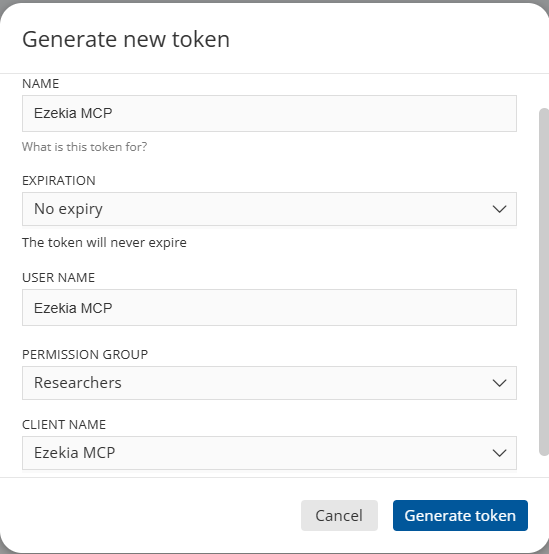
- Complete the fields:
- Name: Any name you choose (e.g. Ezekia MCP)
- Expiration: Select an expiry that fits your organisation's security policy. You can choose No Expiry if appropriate for your use case.
- User name: Enter any name you choose to help identify the token.
- Permission group: Select the access level you want the AI to have
(for example, read-only vs full admin access) - Client name: Select Ezekia MCP
- Click Generate token
- Copy the API key securely (treat this the same way you would a password). The token is only shown once and cannot be retrieved later.
Security Considerations
The permissions assigned to the token control exactly what the connected AI tool can access and do within Ezekia.
If a token is used within a shared AI agent, automation platform or application, anyone with access to that configured connection may be able to use the permissions granted by the token.
We recommend:
- Granting the minimum permissions required
- Using dedicated tokens for different integrations
- Reviewing and rotating tokens periodically in accordance with your security policies
Next Steps
Once your token has been created, follow the official guidance of your chosen platform, and complete the connection process using your newly generated token.